Applies To: Cloud-managed Fireboxes
With the Import Configuration wizard, you can import an existing IKEv2 BOVPN tunnel to a cloud-managed Firebox. When you want a cloud-managed Firebox to use the same settings as a BOVPN that already exists on another Firebox, the Import Configuration wizard saves you time and reduces the risk of errors.
With the Import Configuration wizard, you can import:
- BOVPNs from a locally-managed or cloud-managed Firebox configuration file
- Route-based IPSec BOVPNs to a locally-managed Firebox or third-party VPN endpoint
- Policy-based IPSec BOVPNs to a locally-managed Firebox or third-party VPN endpoint
- Multiple BOVPNs at the same time
- Tunnel certificates and pre-shared keys
- IPv4 and IPv6 BOVPNs
The Import Configuration wizard supports both unidirectional and bidirectional policy-based tunnels.
With the Import Configuration wizard, you cannot import:
- BOVPNs at the same time as other non-BOVPN configuration setting types
- BOVPNs when there are undeployed changes for the target Firebox
- BOVPNs with the same name or settings as a BOVPN on the target Firebox
Before You Begin
Before you import BOVPN configuration settings to a cloud-managed Firebox, review the information in these sections:
Configuration File Requirements
Before you can import BOVPN configuration settings to a cloud-managed Firebox, you must first export and save an .XML configuration file from the Firebox you want to import the BOVPN settings from.
To save a configuration file from a Firebox, follow the steps in these topics:
- Locally-Managed Fireboxes:
- Policy Manager — Save the Configuration File
- Fireware Web UI — Manage the Firebox Configuration File
- Cloud-Managed Fireboxes:
- WatchGuard Cloud — Download the Firebox Configuration File
The configuration file must be:
- In .XML format
You must unzip the .XML file from the .GZ file that you downloaded before you can import it. - A valid Firebox configuration file
Not Importable BOVPNs
When you use the Import Configuration wizard to import BOVPN configuration settings from a Firebox configuration file, the Not Importable tab shows any BOVPN settings that you cannot import because the settings are not supported.

These BOVPN settings are not importable to a cloud-managed Firebox:
Route-Based IPSec to Cloud-Managed Firebox BOVPN
You can import only route-based and policy-based IPSec BOVPNs to locally-managed Fireboxes or third-party VPN endpoints.
IKEv1-Based Firebox BOVPN
You cannot import a BOVPN that uses the IKEv1 protocol.
BOVPN with Unsupported Phase 1 and Phase 2 Algorithms
For a list of the supported Phase 1 and Phase 2 algorithms, go to Configure BOVPN Security Settings.
BOVPN with Missing Certificates
For information about how to manage account certificates and Firebox certificates for cloud-managed devices, go to Manage Certificates in WatchGuard Cloud.
Policy-Based Tunnels with Multiple Endpoint Pairs
The Import Configuration wizard imports a policy-based tunnel with the first gateway endpoint pair. It lists all remaining gateway endpoint pairs on the Not Importable tab with the .BKX suffix, where X is the incremental number of endpoint pairs. This message appears: BOVPN failover for policy-based tunnels is not supported. You can use this information to confirm the endpoint pairs that WatchGuard Cloud cannot import.
Route-Based Tunnels with Multiple Endpoint Pairs
The Import Configuration wizard imports a route-based tunnel with the first gateway endpoint pair. A tunnel is created with the same name as the tunnel from the configuration file. The wizard creates a separate BOVPN tunnel for each remaining gateway endpoint pair, and assigns an incrementally increasing Distance value to each. The wizard lists the tunnels as separate importable tunnels. Each imported tunnel has the .BKX suffix, where X is the incremental number of endpoint pairs.
To update a BOVPN that is not importable, you can use Policy Manager to import the BOVPN configuration settings and edit the .XML configuration file. For more information about how to import configuration settings in Policy Manager, go to the Migrate the Configuration section of Move a Configuration to a New Firebox (Locally-Managed). You must update BOVPN configuration settings for each BOVPN endpoint.
Import a BOVPN Configuration
With the Import Configuration wizard, you can import IKEv2 BOVPN configuration settings from a Firebox configuration file to a cloud-managed Firebox.
The option to use the Import Configuration wizard to import a BOVPN is not available from a Firebox template.
To import IKEv2 BOVPN configuration settings to a cloud-managed Firebox:
- Export and save the .XML configuration file from the Firebox from which you want to import the BOVPN settings. For more information, go to BOVPN Configuration File Requirements.
- From WatchGuard Cloud, select Configure > Devices.
- Select a cloud-managed Firebox.
- Select Device Configuration.
The Device Configuration page opens. The Import Configuration feature is located in the lower part of the page.

- Click Import Configuration.
The Import Configuration wizard opens.
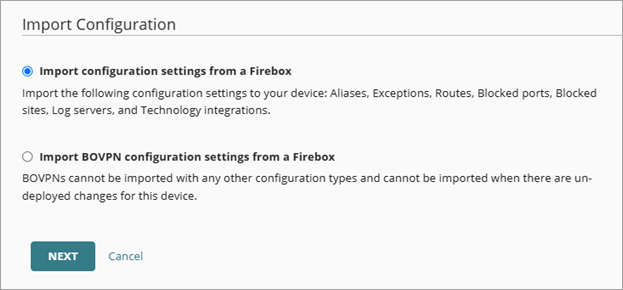
- Select Import BOVPN Configuration Settings from a Firebox. For information about other configuration settings that you can import, go to Import Configuration Settings from a Firebox Configuration File.
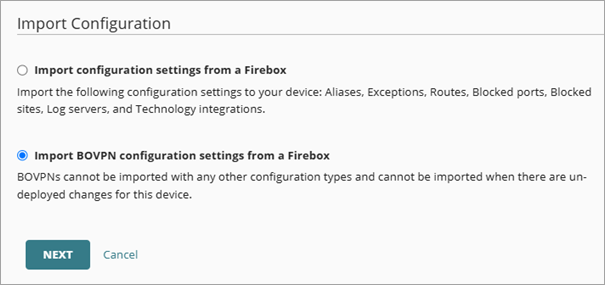
- Click Next.
The Configuration File page opens.

- Drag the configuration file you saved from the Firebox (.XML format) to the file upload box.
You can also click the box to browse to and select the configuration file.

- Click Next.
The BOVPNs page opens.
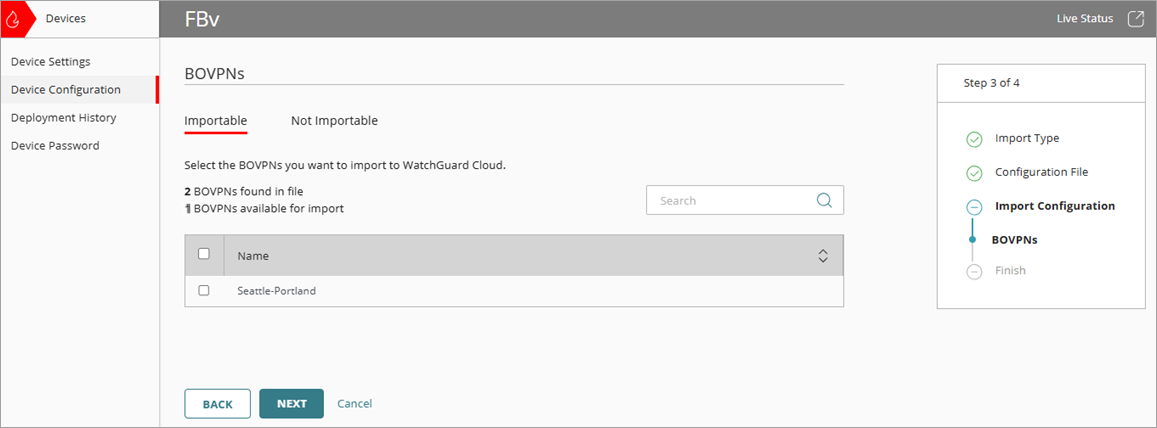
- From the Importable tab, select the check box next to each BOVPN to import. The page shows the number of BOVPNs found in the configuration file and the number of BOVPNs available for import.

- (Optional) Select the Not Importable tab to show the BOVPNs that WatchGuard Cloud cannot import. For more information, go to the Not Importable BOVPNs section of this topic.
- Click Next.
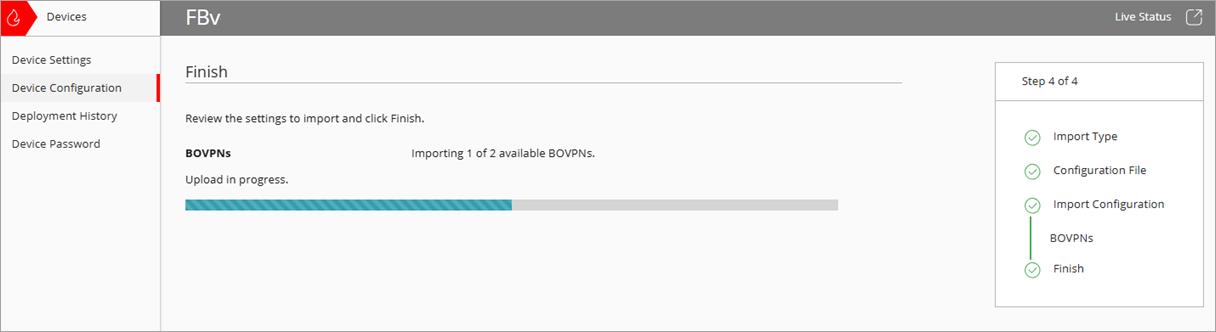
The Finish page opens.
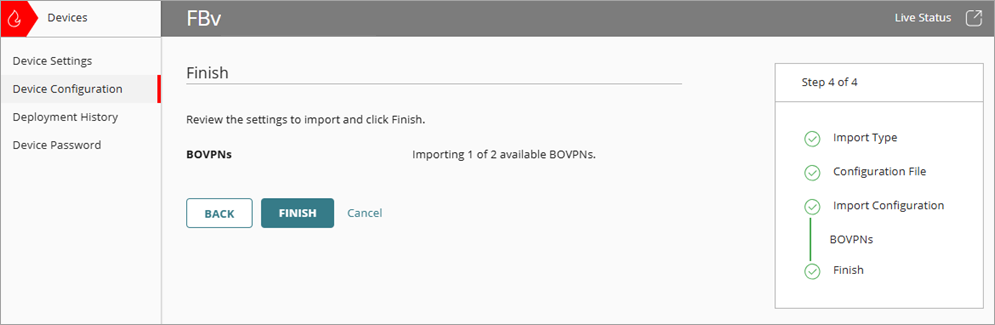
- Review the settings to import. Click Finish.
The Upload in Progress bar indicates the status of the import process.
- After WatchGuard Cloud deploys the changes, the Device Configuration page opens and shows the imported BOVPNs on the VPN tile. From VPN > Branch Office VPN, you can click the imported BOVPNs and edit or delete settings.
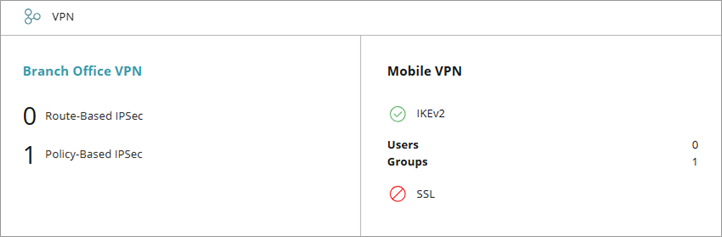
Each BOVPN that you import is an individual deployment in WatchGuard Cloud.
About the Import Configuration Wizard
Import Configuration Settings from a Firebox Configuration File