Applies To: Cloud-managed Fireboxes
Overview
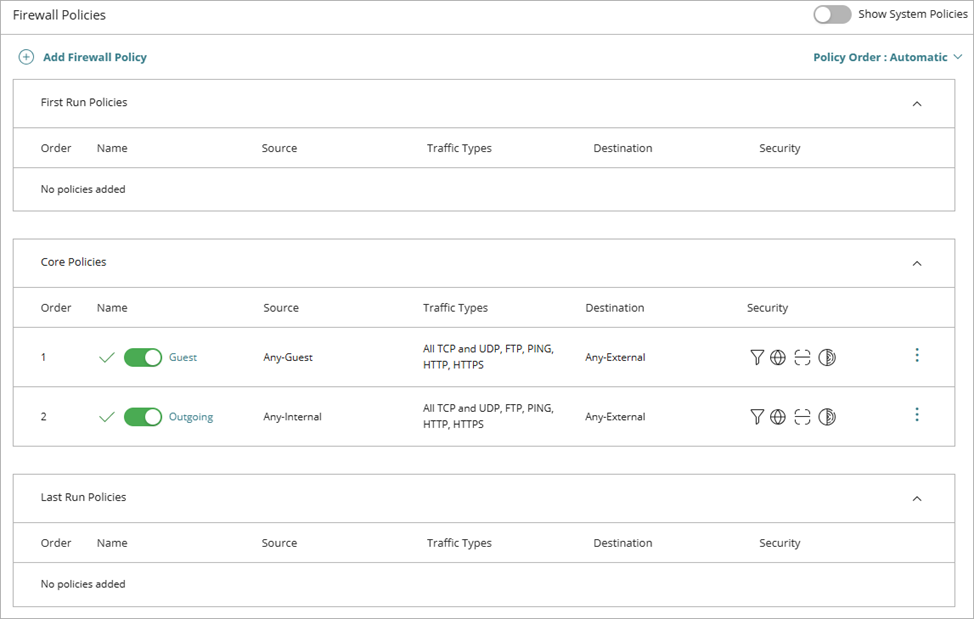
The Firewall Policies page shows policies in order of priority. For each connection, a cloud-managed Firebox applies the highest priority policy that matches the source, destination, and traffic type. By default, the Firebox determines policy priority automatically, but you can also set the policy order manually.
Your operator role determines what you can see and do in WatchGuard Cloud. Your role must have the Devices permission to view or configure this feature. For more information, go to Manage WatchGuard Cloud Operators and Roles.
Automatic Policy Order Mode
When Automatic Policy Order mode is enabled, your configured policies are organized into groups. The policy group determines overall policy priority:
- First Run ─ Apply before all Core policies (highest priority)
- Core ─ Normal priority, appropriate for most traffic
- Last Run ─ Apply after all Core policies (lowest priority)
Within each policy group, policy priority is based on (in this order):
- Source (networks, IP addresses, FQDNs, aliases, users, and groups)
- Traffic types (ports, protocols)
- Destination (networks, IP addresses, FQDNs, aliases, users, and groups)
- Action (Deny has higher priority than Allow)
- Policy name (Alphabetical order)
More specific policies have higher priority and appear higher in the policy list.
Manual Policy Order Mode
When Manual Policy Order mode is enabled, you determine the priority order of each policy. Although we recommend Automatic Policy Order mode for most configurations, you might use Manual Policy Order mode for highly complex configurations or troubleshooting. For example, if the Firebox blocks traffic that should be allowed, you can enable Manual Policy Order mode and temporarily move a policy to the top of the list to confirm its effect.
Policy Groups and Types in Manual Policy Order Mode
In Manual Policy Order mode, because you determine the order of policies, policies are not categorized into the Core, First Run, and Last Run groups. WatchGuard Cloud combines all your configured policies in a single group on the Firewall Policies page and the Firewall Policies widget on the Device Configuration dashboard.

When you add policies in Manual Policy Order mode, you can select from different policy type options. For more information about the policy types available in Manual Policy Order mode, go to Firewall Policy Types on Cloud-Managed Fireboxes.
You cannot change the order of System policies. To troubleshoot unexpected behavior, you can copy a System policy and then change the order of the copied policy. For more information about System policies, go to System Firewall Policies on Cloud-Managed Fireboxes.
Manual Policy Order Mode and Firebox Templates
You can change the order of policies that the Firebox inherits from Firebox templates. When Manual Policy Order mode is enabled on a Firebox, if a policy is added to a template the Firebox subscribes to, the inherited policy is added to the end of the policy list on the Firebox. Make sure to move the inherited policy to an appropriate position in the policy list.
Manual Policy Order mode is not available in Firebox templates. The policies in Firebox templates always use automatic order.
For more information about templates, go to About Firebox Templates.
Enable Manual Policy Order Mode and Change the Policy Order
Manual Policy Order mode can be helpful if your configuration requires granular control or if you have to troubleshoot unexpected behavior.
We recommend that you use Automatic Policy Order mode. If you change to Manual Policy Order mode, make sure that you test the order of policies carefully.
To enable Manual Policy Order mode and change the order of your firewall policies, from WatchGuard Cloud:
- Select Configure > Devices.
- Select the cloud-managed Firebox.
- Click Device Configuration.
- Click the Firewall Policies widget.
The Firewall Policies page opens. - To enable Manual Policy Order mode, on the Firewall Policies page, from the Policy Order drop-down list, select Manual.
A confirmation dialog box opens.
- To confirm that you want to enable Manual Policy Order mode, click Enable.
- To change the policy order, drag policies to new positions in the list or click the order number for a policy and enter the new order number in the text box.
To revert your most recent change, click Undo. To restore the change, click Redo.
- Click Save.
For configuration changes to take effect on a cloud-managed Firebox, you must deploy the configuration update to the Firebox. For more information, go to Manage Device Configuration Deployment for Fireboxes.
Enable Automatic Policy Order Mode
When you re-enable Automatic Policy Order mode, your policies are sorted into the Core, First Run, and Last Run policy groups and automatically ordered within the groups.
If you had First Run or Last Run policies that became Packet Filter policies in Manual Policy Order mode, WatchGuard Cloud remembers if the Packet Filter policies were originally First Run or Last Run policies. If you created a Packet Filter policy in Manual Policy Order mode, when you switch to Automatic Policy Order mode, the Packet Filter policy becomes a Last Run policy. To make it a First Run policy, you can change the policy type. For more information, go to Change the Firewall Policy Type.
For more information about policy types, go to Firewall Policy Types on Cloud-Managed Fireboxes.
To re-enable Automatic Policy Order mode, from WatchGuard Cloud:
- Select Configure > Devices.
- Select the cloud-managed Firebox.
- Click Device Configuration.
- Click the Firewall Policies widget.
The Firewall Policies page opens. - To enable Automatic Policy Order mode, on the Firewall Policies page, from the Policy Order drop-down list, select Automatic.
A confirmation dialog box opens.
- To confirm that you want to enable Automatic Policy Order mode, click Enable.
For configuration changes to take effect on a cloud-managed Firebox, you must deploy the configuration update to the Firebox. For more information, go to Manage Device Configuration Deployment for Fireboxes.