Applies To: Cloud-managed Fireboxes
In a firewall policy for a cloud-managed Firebox, you can configure which security services apply to the traffic the policy handles.
You can enable and disable security services in the Security Services section of a policy. The security services you can enable in the policy depend on the policy type:
| Policy Type | Content Filtering | Geolocation | Content Scanning | Tor Exit Node Blocking |
|---|---|---|---|---|
| Outbound | Yes | Yes | Yes | Yes |
| Inbound | No | Yes | Yes | Yes |
| Custom | Yes | Yes | Yes | Yes |
| First Run | Application Control only | Yes | No | Yes |
| Last Run | Application Control only | Yes | No | Yes |
| Packet Filter | Application Control only | Yes | No | Yes |
For more information about policy types, go to Firewall Policy Types on Cloud-Managed Fireboxes.
When you add a policy, all available security services are enabled in the policy by default. In policy settings for Content Filtering and Geolocation, you select which action the policy uses.
Your operator role determines what you can see and do in WatchGuard Cloud. Your role must have the Devices permission to view or configure this feature. For more information, go to Manage WatchGuard Cloud Operators and Roles.
To configure security services for a policy:
- Add or edit a policy. For more information, go to Configure Firewall Policies in WatchGuard Cloud.
- To enable or disable a security service, click the toggle for the service.

Tor Exit Node Blocking is available in Fireware v12.8.1 and higher and Fireware v12.5.10 and higher.
- To change the Content Filtering action, select the action from the drop-down list. For information about how to configure Content Filtering actions, go to Configure Content Filtering in WatchGuard Cloud.
- To change the Geolocation action, select the action from the drop-down list. For information about how to configure Geolocation actions, go to Add Geolocation Actions in WatchGuard Cloud.
- To save the policy, click Save.
Make sure that any services you enable in policies are also enabled in the global Security Services settings. The Security Services section of the Device Configuration dashboard shows which services are enabled. For more information, go to About Firebox Security Services Settings in WatchGuard Cloud.
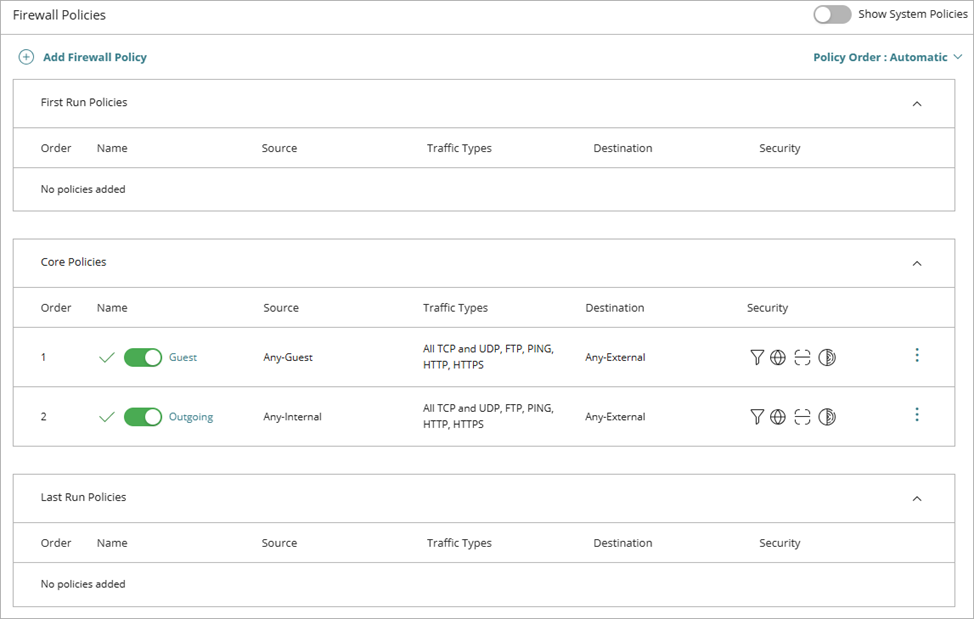
On the Firewall Policies page, icons in the Security column shows which services are enabled for each policy. To see the security service name, hover over each icon.