Applies To: Cloud-managed Fireboxes
1-to-1 NAT rules are often used to map IP addresses on one network and IP addresses on a different network. In policy-based 1-to-1 NAT, the Firebox uses the IP addresses that you specify when you configure 1-to-1 NAT in the networking settings, and the Firebox applies 1-to-1 NAT rules to individual policies. By default, 1-to-1 NAT is enabled in the configuration of a new user-defined policy. If traffic matches both 1-to-1 NAT and dynamic NAT policies, 1-to-1 NAT takes precedence. For information about 1-to-1 NAT rules, go to Configure 1-to-1 NAT.
1-to-1 NAT Settings in a Policy
In a firewall policy for a cloud-managed Firebox, you specify the source and destination of the connections the policy applies to. For 1-to-1 NAT, add the 1-to-1 NAT IP addresses to the appropriate source and destination sections of the policy:
- For a policy that manages outgoing connections, add the Real Base IP addresses to the Source section of the policy configuration.
- For a policy that manages incoming connections, add the NAT Base IP addresses to the Destination section of the policy configuration.
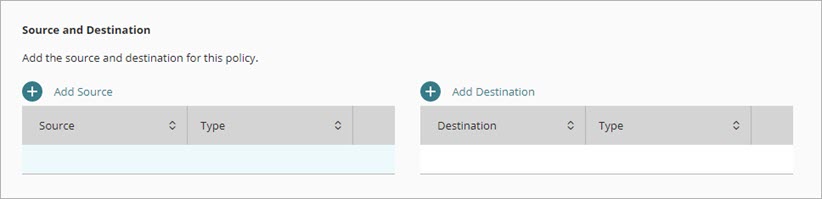
For information about Real Base and NAT Base, go to Configure 1-to-1 NAT. For more information about the source and destination of the connections a policy applies to, go to Configure Firewall Policies in WatchGuard Cloud.
Enable Policy-Based 1-to-1 NAT
After you configure a 1-to-1 NAT rule, and because policy-based 1-to-1 NAT is enabled by default, you do not have to configure any policy settings to enable 1-to-1 NAT in a new policy.
To enable 1-to-1 NAT in a policy where it was previously disabled, from WatchGuard Cloud:
- Select Configure > Devices.
- Select the cloud-managed Firebox.
- Click Device Configuration.
- Click the Firewall Policies tile.
The Firewall Policies page opens. - Select a policy to edit.
- In the policy configuration, select the Advanced tab.
- Enable the 1-to-1 NAT check box.
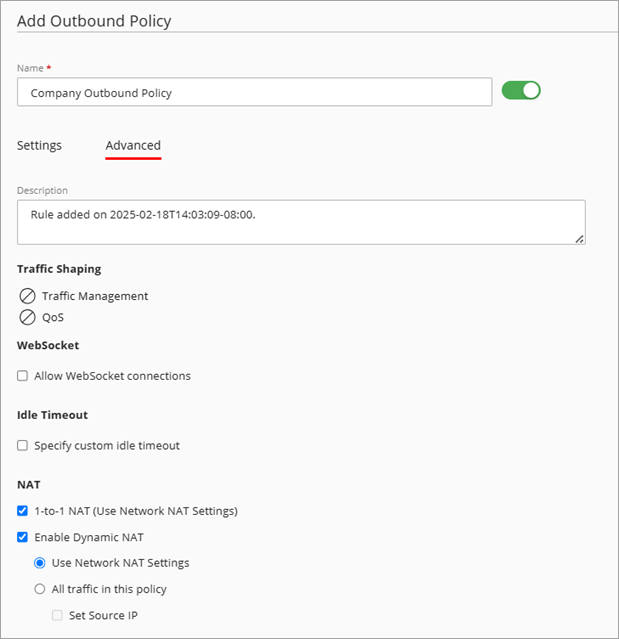
- To save configuration changes to the cloud, click Save.
Configure Advanced Firewall Policy Settings for a Cloud-Managed Firebox