Applies To: Cloud-managed Fireboxes

This document applies to Fireboxes you manage in WatchGuard Cloud. For information that applies to Fireboxes managed in Fireware Web UI or WatchGuard System Manager, go to:
Overview
To protect your network and enforce usage policies, you can configure your cloud-managed Firebox to block access to specific sites and restrict traffic on specific ports. These controls help prevent unauthorized access, reduce exposure to threats, and make sure that network resources are used appropriately.
Blocked Sites
Prevent traffic to or from sites that you know or suspect to be malicious, inappropriate, or non-compliant with organizational policies.
The Firebox automatically blocks some sites temporarily when it detects traffic that matches the pattern of well-known network attacks, but if you want to block a site permanently, you can add it to the Blocked Sites list in the Firebox configuration. You can block an IPv4 or IPv6 host IP address, network IP address or host IP address range, or you can block a site by FQDN (includes wildcard domains).
You can view a combined list of permanent and temporary blocked sites on the Live Status > Blocked Sites page. For more information, go to Monitor and Manage Blocked Sites on Fireboxes in WatchGuard Cloud.
For more information about blocked sites, go to About Blocked Sites on Cloud-Managed Fireboxes.
Blocked Ports
Prevent traffic to unused or vulnerable ports. The Firebox denies all traffic to blocked ports on all external interfaces.
For more information about blocked ports, go to About Blocked Ports on Cloud-Managed Fireboxes.
You can manage blocked sites and blocked ports on the Network Blocking page in the Firebox configuration or in Firebox templates. For more information about templates, go to About Firebox Templates.
You can also import blocked sites and blocked ports from a Firebox configuration file. For more information, go to Import Configuration Settings from a Firebox Configuration File.
Add Blocked Sites
If you know or think that a specific site poses a security risk and you want to block it permanently, add it to the Blocked Sites list in the Firebox configuration.
The limit for permanent blocked sites in the database is 250,000 IP addresses.
To add a blocked site, from WatchGuard Cloud:
- Select Configure > Devices.
- Select a cloud-managed Firebox.
Status and settings for the selected Firebox appear. - Select Device Configuration.
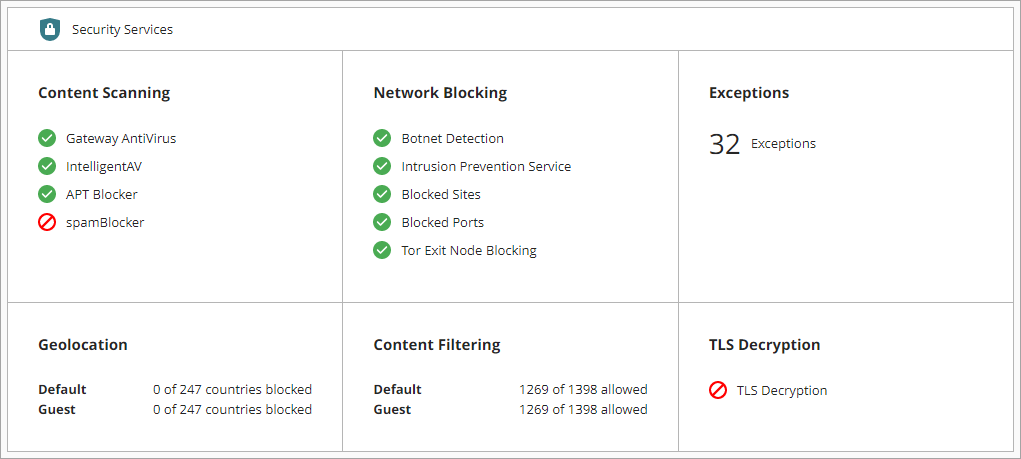
The Device Configuration page opens and shows the WatchGuard Cloud Security Services. - Click the Network Blocking widget.
The Network Blocking page opens. - Enable Blocked Sites.

- Click Add Blocked Site.
The Add Blocked Site dialog box opens.

- From the Type menu, select the type of address to block.
- Specify the address. The parameters that appear are different for the type you select.
- Host IPv4 — Host IP address
- Network IPv4 — Network address
- Host Range IPv4 — From address and To address
- Host IPv6 — Host IP address
- Network IPv6 — Network address
- Host Range IPv6 — From and To Host IP addresses
- Fully Qualified Domain Names — FQDN, includes wildcard domains such as *.example.com.
For more information about how to use FQDN in blocked sites and policies, go to About Policies by Domain Name (FQDN). - In the Description text box, type a description of the site you want to block.
- Click Add.
- To save configuration changes to the cloud, click Save.
To remove a blocked site, click  next to the blocked site, select Delete, then click Save.
Add a Blocked Port
From the Network Blocking page, you can add a port number to the Blocked Ports list. The Firebox denies all traffic to blocked ports on all external interfaces.
Do not block standard ports such as 53, 80, and 443.
To add a blocked port:
- Select Configure > Devices.
- Select a cloud-managed Firebox.
Status and settings for the selected Firebox appear. - Select Device Configuration.
The Device Configuration page opens and shows the WatchGuard Cloud Security Services. - Click the Network Blocking widget.
The Network Blocking page opens. - Enable Blocked Ports.

- Click Add Blocked Port.
The Add Blocked Port dialog box opens. - In the Add Port text box, type a port number.
The number must be between 1 and 65535.

- Click Add.
- To save configuration changes to the cloud, click Save.
To remove a blocked port, click next to the blocked port, select Delete, then click Save.
Add a Cloud-Managed Firebox to WatchGuard Cloud
About Blocked Sites on Cloud-Managed Fireboxes
About Blocked Ports on Cloud-Managed Fireboxes
Add Exceptions on a Cloud-Managed Firebox
Monitor and Manage Blocked Sites on Fireboxes in WatchGuard Cloud