Applies To: WatchGuard Cloud-managed Access Points (AP130, AP230W, AP330, AP332CR, AP340, AP430CR, AP432)
Overview
The Client Journey is a Wi-Fi diagnostic tool in WatchGuard Cloud that enables you to visualize where Wi-Fi clients encounter problems during the connection process. The Client Journey consolidates association, authentication, and network connectivity data into a single view.
By showing how clients associate, authenticate, roam, and disconnect across access points, you can quickly pinpoint where issues occur from signal strength issues, incorrect credentials, DHCP/DNS failures, or upstream network problems. This dramatically reduces troubleshooting time and eliminates guesswork when resolving wireless connectivity complaints.
Requirements
Client Journey requires:
- Access point firmware version 3.2 or higher
- USP Wi-Fi Management license
Limitations
These are limitations of what the Client Journey can track:
- Client Journey cannot reliably track wireless clients that use a static IP address because it relies on observing DHCP traffic to confirm network connectivity.
- Client Journey does not reliably track wireless clients connected through a Captive Portal or Network Access Enforcement. These clients may appear in Client Journey with an incorrect status because the access point reports network connectivity before Captive Portal authentication or Network Access Enforcement validation completes.
View Client Journey
To view the Client Journey:
- Select Monitor > Devices.
- Select an access point or a folder that contains your access points.
- From the Devices menu, select Live Status > Client Journey.
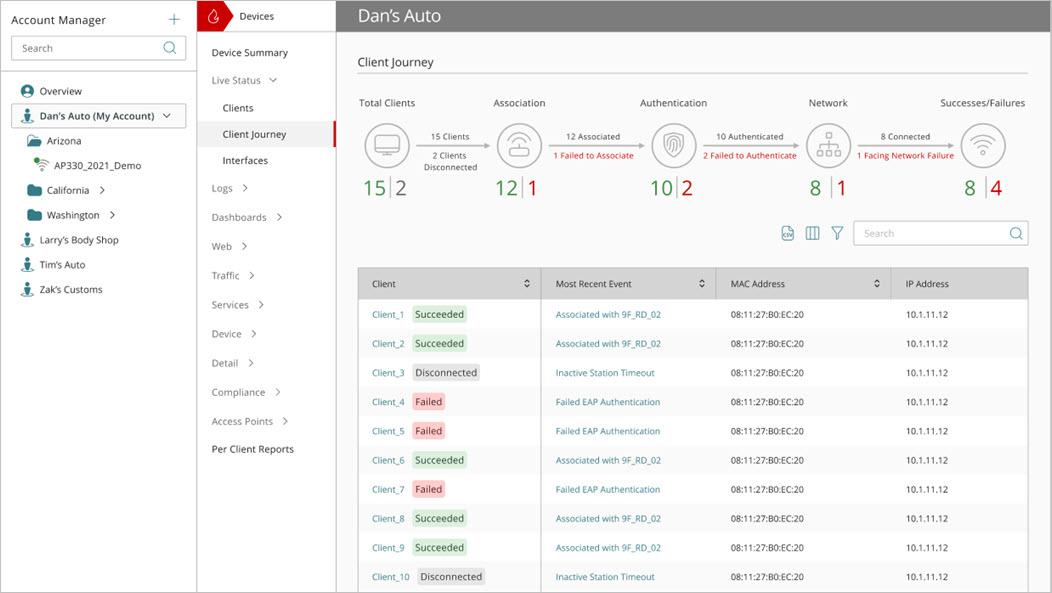
The Client Journey page opens.
The Client Journey page shows the most recent data available from WatchGuard Cloud. By default, this data reflects up to the last 30 minutes and may not represent an exact real-time snapshot. It might take several minutes for data to appear when a client attempts to connect. For the most recent connection events for a client, go to the Live Status > Clients page and select a specific client to view the most recent client connection events.
Use the time range selector to filter the data results:
- The default time duration is the last 30 minutes.
- To change the time range, select the Date and Start Time to define the beginning of the data window.
- In the Duration drop-down list, select the time duration (up to 60 minutes).
The Client Journey widgets indicate:
- Total Clients — Shows the total number of wireless clients observed during the selected time period. The widget also indicates how many clients remain connected and how many disconnected before completing or maintaining a connection.
- Association — Shows the number of clients that successfully associated with an access point and the number that failed during the association process. Association is the first stage of a wireless connection, where a client establishes a basic connection to the wireless network.
- Authentication — Shows the number of associated clients that successfully authenticated and the number that failed authentication. Authentication verifies that a client is allowed to access the network using the configured security method, such as WPA-Personal or WPA-Enterprise.
- Network — Shows the number of authenticated clients that successfully connected to the network and the number that encountered a network-related failure. Network failures can occur after authentication, such as when a client is unable to obtain network access or complete the connection process.
- Successes/Failures — Provides an overall summary of client connection outcomes. Successes represent clients that completed all stages of the connection process, while failures represent clients that were unable to complete the client journey due to association, authentication, network, or other connection-related issues.
The totals shown in each stage of the Client Journey process may not always match. Clients whose connection events span the boundary of the observation window may be excluded from one or more stages, which can cause counts to differ slightly across stages. This is most likely to occur for clients that connected just before or after the page was loaded.
The Client Journey table includes this data:
- Client — The host name of the wireless client. Click the client name to view detailed information about the client including the client timeline and connection events. For more information, go to View Wireless Client Details.
The client connection status is indicated beside the client name: - Succeeded — The client connection to the access point succeeded.
- Failed — The client connection to the access point failed.
- Disconnected — The client disconnected from the access point.
- Most Recent Event — Indicates the most recent client connection event.
- MAC Address — The MAC address of the wireless client.
- IP Address — The IP address of the wireless client.
- Access Point (folder view) — The access point the client connected to, or attempted to connect to if the connection failed.
- Radio — The radio frequency band to which the wireless client is connected.
You can take these actions on data in the Client Journey table:
- Click
 to download a CSV list of all client journey connection events.
 - Click
 to customize and reorder the columns to show only the information you require.
 - Click
 to filter the list. You can filter the list by Client, Most Recent Event, and Radio.
 - To search the data in the table, enter text in the Search text box and press Enter.