If you have a tier-1 or tier-n account but do not remember your password, you can send a request to reset it from the WatchGuard login page.
To request a password reset:
- Go to https://login.watchguard.com.
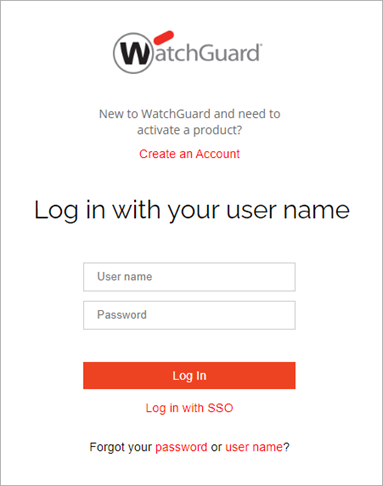
- Click password.
The Reset Password page opens.
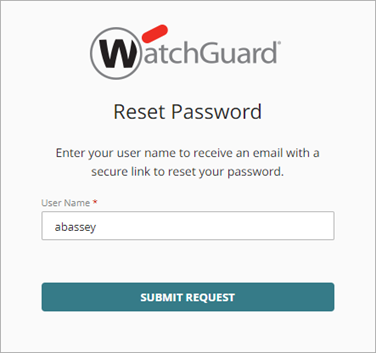
- In the User Name text box, type your user name.
- Click Submit Request.
A confirmation page opens. If the user name you provided is associated with a user account, you receive an email message with instructions to reset your password.
If you do not receive an email message, make sure the user name you entered is correct. If you forgot your user name, you can click you can retrieve it here in the confirmation page or submit a request for your user name from the login page. For more information, go to Retrieve Your WatchGuard User Name.
- When you receive the WatchGuard Password Reset Request email, click Reset Password.
The Enter a New Password page opens. - In the Password and Confirm Password text boxes, type your new password. Your password must include:
- At least 12 characters and a lowercase letter, uppercase letter, number, and symbol. Do not use <, >, emojis, or spaces.
- A unique pattern. For example, do not use 123456 or password.
To protect your account from known threats, WatchGuard checks passwords against databases of compromised passwords.
- Click Save Password.
The login page opens.
Retrieve Your WatchGuard User Name