Search Logs in Traffic Monitor with Regular Expressions
Applies To: Locally-managed Fireboxes
Firebox System Manager (FSM) includes Traffic Monitor, which displays real-time logs. When logs grow quickly, it can be difficult to find relevant entries. By default, the Traffic Monitor filter function uses a literal string search, but you can enable regular expression (regex) filtering to search for complex patterns—such as specific IP ranges, protocols, or combined conditions—using Perl-compatible regular expressions (PCRE).
For more information about regular expressions, go to About Regular Expressions.
Enable Regex Filtering
You can customize the appearance and behavior of Traffic Monitor and log messages in FSM, including the ability to enable regex filtering. For more information about settings, go to Change Traffic Monitor Settings in Firebox System Manager.
To enable regex filtering, from FSM:
-
- Go to File > Settings > Traffic Monitor.
The Settings dialog box opens. - Select the Regular Expression Filtering check box and click OK.
- Select the Traffic Monitor tab.
- Enter the regular expression in the filter text box.
- From the
 drop-down list, select one of these options:
- Highlight Search Results — Shows all log lines but highlights lines that match in a different color.
- Filter Search Results — Shows only the log lines that match.
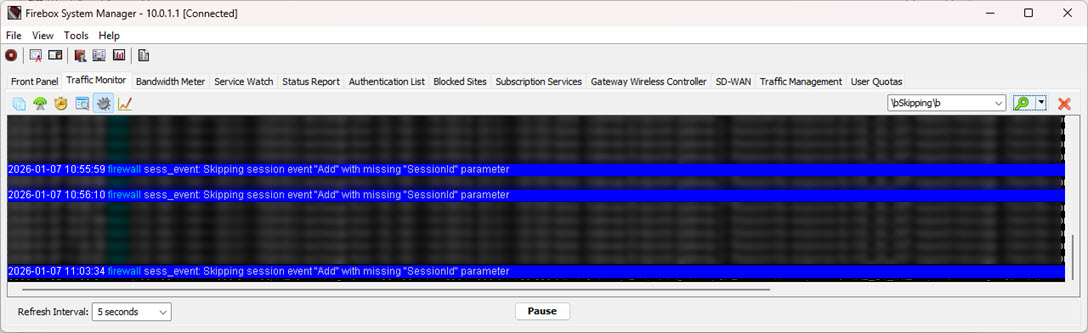
Example Patterns for Traffic Monitor Log Searches
Basic Keyword Searches
A keyword search is a search for log entries that contain one or more specific words (keywords) without the use of complex patterns or conditions.
Contains A AND B
Match log lines that include both keywords.
^(?=.*\QA\E)(?=.*\QB\E)
For example, match any log line that contains both the keywords error and timeout in any order.
^(?=.*\Qerror\E)(?=.*\Qtimeout\E)
Contains A AND B, but NOT C
Match log lines that include A and B, exclude C.
^(?=.*\QA\E)(?=.*\QB\E)(?!.*\QC\E)
For example, match any log line that contains both the keywords error and timeout in any order, but not debug.
^(?=.*\Qerror\E)(?=.*\Qtimeout\E)(?!.*\Qdebug\E)
Contains A OR B
Match log lines if either keyword appears.
(?:\QA\E|\QB\E)
For example, match any occurrence of error or timeout.
(?:\Qerror\E|\Qtimeout\E)
Whole word match (HTTP)
Match HTTP as a standalone word, not inside another string.
\bHTTP\b
IP Address Searches
An IP address search is a search for log entries that contain a specific IP address or an IP address within a specific network or subnet. You can use a literal search or a pattern-based search.
Any valid IPv4 address
Match an IPv4 address in log lines.
\b^(?:25[0-5]|2[0-4]\d|1?\d?\d)\.(?:25[0-5]|2[0-4]\d|1?\d?\d)\.(?:25[0-5]|2[0-4]\d|1?\d?\d)\.(?:25[0-5]|2[0-4]\d|1?\d?\d)\b
For example, match for 192.168.1.100
^192\.168\.1\.100\b
Any IPv4 address that contains 192.168.1
Match any log line that contains 192.168.1 anywhere in the text. Commonly used as the first part of a composite filter. E quotes everything inside the expression as literal.
^(?=.*\Q192.168.1\E)
Subnet 192.168.1.0/24
Match any IP address in the subnet 192.168.1.0/24 (from 192.168.1.0 to 192.168.1.255).
\b192\.168\.1\.(?:25[0-5]|2[0-4]\d|1?\d?\d)\b
Composite Filters
A composite filter is a search pattern that combines multiple conditions into one regex. With a composite filter, you can apply several criteria at the same time to refine your search.
Specific IP and HTTP, exclude HTTPS/UDP
Show traffic from one IP and use HTTP but exclude HTTPS/UDP.
^(?=.*\Q192.168.1.241\E)(?=.*\bhttp\b)(?!.*\Qhttps/udp\E)
Any IP in /24 and is HTTP, exclude HTTPS/UDP
Show traffic from a specific subnet and protocol.
^(?=.*\b192\.168\.1\.(?:25[0-5]|2[0-4]\d|1?\d?\d)\b)
 (?=.*\bhttp\b)(?!.*\Qhttps/udp\E)
Any IP in /24 + (HTTP OR Teams), exclude ICMP
Show web or Teams traffic but exclude pings.
^(?=.*\b192\.168\.1\.(?:25[0-5]|2[0-4]\d|1?\d?\d)\b)
 (?=.*(?:\bhttp\b|\Qteams\E))(?!.*\Qicmp\E)
Tips for Effective Searches
- To anchor searches and improve performance, start patterns with ^.
- Use \b for exact word matches. For example, \bhttp\b.
- When you mix text and regex, quote literals with \Q...\E.
- Test regex before you apply filters broadly.