Applies To: FireCloud Total Access
With FireCloud Total Access, you can give remote FireCloud users access to local resources on the company network, such as a printer or an SMB share, without the use of a VPN. To do this, you install a FireCloud Gateway on your network, and then configure a private resource in FireCloud for each resource that you want to give remote users access to.
If the domain resources that users must access require Kerberos authentication, for example, when NTLM is disabled on your Active Directory domain, you must also add a Kerberos Authentication resource on the FireCloud Gateway. A Kerberos Authentication resource tells FireCloud which Active Directory domain to forward and which internal DNS servers to use so that clients can complete Kerberos authentication through the FireCloud tunnel.
You must set up a FireCloud Gateway before you can add resources. For detailed steps to install a Gateway, go to About FireCloud Virtual Gateways.
FireCloud Private Resource Connection Overview
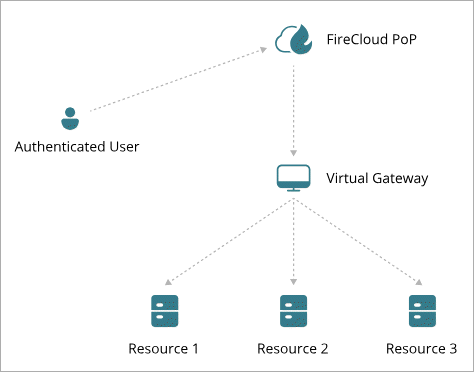
This section explains the connection flow when a FireCloud user connects to a private resource on your network.
- User connects to FireCloud and authenticates.
- Connection Manager establishes a WireGuard tunnel to the nearest WatchGuard point of presence (PoP).
- FireCloud runs scanning services, such as Intrusion Prevention Service.
- FireCloud passes the connection out to the Internet.
- When a user must pass traffic or connect to a private resource:
- FireCloud routes the connection from the PoP through a WireGuard tunnel that connects the PoP and the FireCloud Gateway on your network.
- FireCloud routes the connection from the FireCloud Gateway to the appropriate resource on your network.
Configure Private Resources
In FireCloud, private resources are the local resources on your company network that you want to allow remote users to connect to. You might configure a private resource for RDP, web access to a device or server, or a SQL server.
Before you can configure private resources, you must configure and deploy a FireCloud Gateway. For detailed steps to do this, go to About FireCloud Virtual Gateways.
To add a private resource in FireCloud:
- Log in to WatchGuard Cloud.
- From the navigation menu, select Configure > FireCloud. If you have a Service Provider account, you must select an account from Account Manager.
- Select Resources.
The Resources page opens. - Click Add Resource.
The Add Resource page opens. - From the Gateway drop-down list, select the Gateway for this resource.
- From the Type drop-down list, select Private Resource.
- In the Details section:
- In the Name text box, type a name for the resource.
- In the FQDN text box, specify an FQDN that FireCloud can use to connect to this resource. FireCloud uses this FQDN to resolve connections to private resources while users are connected to FireCloud. This is typically a private FQDN, such as example.com, and does not have to be resolvable.
You cannot use FQDNs that have uppercase letters.
Do not use local FQDNs if your end-users have Mac computers. For more information, refer to the Apple documentation.
- In the IP Address text box, enter the internal IP address of the resource.
- To specify the ports and protocols used to connect to this private resource, in the Traffic section:
- From the Protocol drop-down list, select a protocol type.
- In the Port text box, enter the port or port range.
You can select from preset protocols and ports, or specify protocols with custom ports and port ranges. To specify a port range, include a dash between two ports. For example: 1000-1200.
- To add another protocol and port combination, click Add Protocol.
- Click Save.
- To allow users to connect to the new private resource, add the private resource to your existing access rules, or add new access rules for this private resource. Access rules specify which resources users have access to. For more information, go to FireCloud Access Rules.
When you configure access rules, we recommend that you only add each group to a single access rule. If a group belongs to multiple access rules, FireCloud only applies the access rule with the highest priority. This can prevent access to private resources if an access rule with private resources has a lower priority than another access rule for the same groups.
Configure Kerberos Authentication Resource
A Kerberos Authentication resource tells FireCloud which Active Directory domain to forward and which internal DNS servers to use for DNS SRV queries. Add this resource when users require access to domain resources that require Kerberos authentication.
You can add only one Kerberos Authentication resource per Gateway. Use private IP addresses for DNS server destinations. FireCloud does not support a public IP address as a DNS server destination.
When clients resolve Active Directory SRV records, the DNS response can include server host names that clients must reach for Kerberos authentication. Add each host name as a Private Resource on the same Gateway. The FQDN for each private resource must match the hostname in the DNS response.
To add a Kerberos Authentication resource in FireCloud:
- Log in to WatchGuard Cloud.
- From the navigation menu, select Configure > FireCloud. If you have a Service Provider account, you must select an account from Account Manager.
- Select Resources.
The Resources page opens. - Click Add Resource.
The Add Resource page opens. - From the Gateway drop-down list, select the Gateway that connects to your Active Directory network.
- From the Resource Type drop-down list, select Kerberos Authentication.
- In the Name text box, type a name for this resource.
- In the Domain text box, type your Active Directory domain name, such as example.com.
FireCloud treats the domain to forward as a wildcard. For example, if you enter example.com, FireCloud treats that as *.example.com.
- In the DNS Server 1 text box, type the private IP address of your primary internal DNS server, such as 10.0.1.10.
- (Optional) In the DNS Server 2 text box, type the private IP address of your secondary internal DNS server, such as 10.0.1.11.
- Click Save.
- After you save the Kerberos Authentication resource, add it to your access rules so that users can access domain resources with Kerberos authentication. For more information, go to FireCloud Access Rules.