Applies To: WatchGuard Advanced Reporting Tool and Data Control
You can use the User Monitored Files dashboard to see aggregated information about the files found on the network or in email attachments that match the monitoring rules you define.
Your operator role determines what you can see and do in WatchGuard Cloud. Your role must have the Access Advanced Data Control Information permission to view or configure this feature. For more information, go to Manage WatchGuard Cloud Operators and Roles.
To open the User Monitored Files dashboard, from the Endpoint Security 360 or WatchGuard EDR management UI:
- In WatchGuard Cloud, select Monitor > Endpoint Security.
- Select Status > Advanced Visualization Tool.
A new browser tab opens. - From the left pane, select Data Control > User Monitored Files.
- Select a time period to filter the data on.

- Click Refresh.
The dashboard shows information for the time period selected.
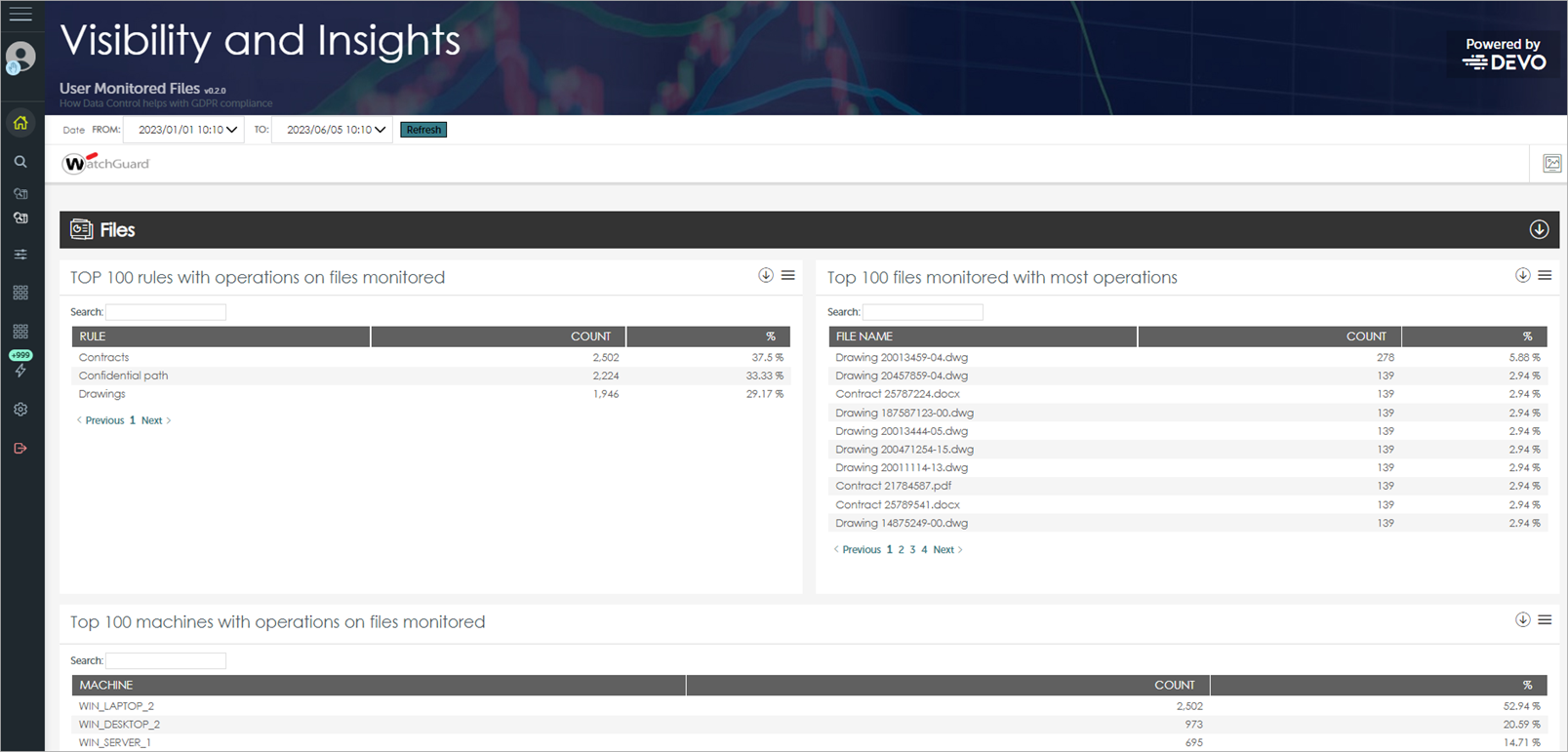
The User Monitored Files dashboard includes these sections:
- Files — Shows the top 100 rules with operations on files, the top 100 files with most operators, and the top 100 machines with operations on files.
- Attachments — Shows the top 100 machines and users that sent and received attachments.
About Data Control Advanced Visualization
User Operations on Files with Personally Identifiable Information (PII)