Applies To: WatchGuard Data Control
You can search for files with specific contents on the computers on your network.
For information on search syntax, see Data Control Search Syntax.
Your operator role determines what you can see and do in WatchGuard Cloud. Your role must have the Configure Data Control permission to view or configure this feature. For more information, go to Manage WatchGuard Cloud Operators and Roles.
To create a search:
- In WatchGuard Cloud, select Monitor > Endpoint Security.
- Select Status.
- From the left pane, select Data Control.

- At the bottom of the dashboard page, in the Searches section, enter search keywords in the Search bar.

- Press Enter.
The Search Results list opens. The Search Results list shows the computers that contain the specified search keyword, with the name of the file detected and other information.
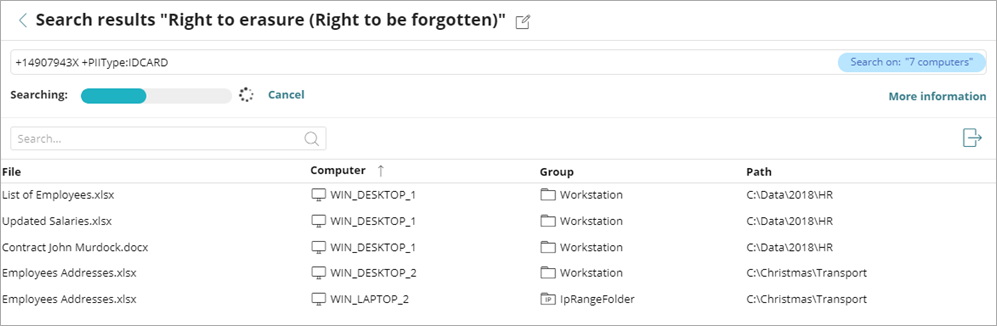
- To change the search name, at the top of the page, click
 .
.
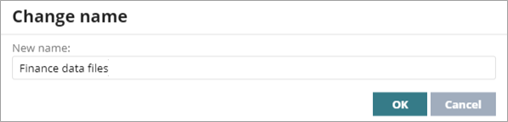
- Type a new name. Click OK.
By default, the name of the search is the search keywords you enter. - To cancel a search in progress, click Cancel.
- To find a specific file or computer in the search results, in the Search bar, type a search keyword. Press Enter.
- To see more information about the search in progress, click More Information.
The Search Progress list opens.
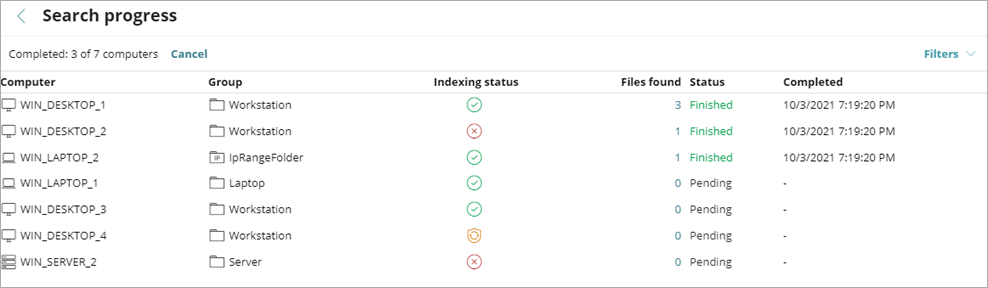
- To filter the Search Progress list by status or files found, click Filters and select filter criteria.
- To export all results from the Search Results list, click < to return to the list. Click
 .
.
For information on advanced searches, see Create Advanced Searches in Data Control.
Manage Searches in Data Control