Applies To: Endpoint Security Elite, Endpoint Security 360, Endpoint Security Prime, WatchGuard EDR, WatchGuard EDR Core, Endpoint Security Basic
After you use the onboarding application to install the plug-in, you must configure the plug-in for integration with N-able N-central. To configure the plug-in you must complete these steps:
To view what N-able N-central monitors after you complete your configuration, go to Threats and Errors Monitored by the Service .
Import WatchGuard Scripts
When you download the WatchGuard Endpoint Security plug-in for N-able N-central, the downloaded folder includes WatchGuard scripts. These scripts are necessary to perform actions in N-able N-central.
The scripts available to perform Windows actions are:
- WatchGuard Endpoint Security – Install agent in Windows.amp
- WatchGuard Endpoint Security – Scan Windows device.amp
- WatchGuard Endpoint Security – Isolate Windows device.amp
- WatchGuard Endpoint Security – Unisolate Windows device.amp
- WatchGuard Endpoint Security – Uninstall agent in Windows.amp
- WatchGuard Endpoint Security - Mark Clean.amp
The scripts available to perform macOS actions are:
- WG-Install-Mac.sh (WatchGuard Endpoint Security – Install agent in Mac)
- WG-Scan-Mac.sh (WatchGuard Endpoint Security – Scan Mac device)
To import WatchGuard scripts, from N-central:
- Select Configuration > Scheduled Tasks > Script/Software Repository.

- Click Add.
A drop-down list opens.

- From the drop-down list, select Automation Policy to import scripts for Windows devices or select Mac Scripting to import scripts for macOS devices.
The Add Script/Software Repository Item dialog box opens.

- Click Browse and select the script you want to import.
- For Windows scripts, do not enter a Name or Description.
For macOS scripts, you must enter a Name and Description. - Click OK. In N-central, the scripts list now includes the imported script.
- Repeat this procedure for all Windows and macOS scripts.
Configure Service Monitoring
To monitor security (such as threats detected and security status incidents) in N-central, you must complete these steps:
- Import the Service Template
- Assign Custom Properties to Custom Services
- Create a Rule
- Configure Notifications
Import the Service Template
When you download the WatchGuard Endpoint Security plug-in for N-able N-central, the downloaded folder includes the WatchGuard service template.
To import the service template, from N-central:
- Select Administration > Service Management > Service Templates.

- Click Import.
The Import Service Template page opens.

- Click Browse and select the service template zip file (WatchGuard Endpoint Security – Monitor Windows device service template.zip) from the NableInt folder.
- Click Import Service Template.
The Add Service Template page opens.

- (Optional) Edit the Name of the service template.
- Click WatchGuard Endpoint Security - Monitor Errors Service in the list.
- Select the WatchGuard Endpoint Security - Monitor Errors Service and WatchGuard Endpoint Security - Monitor Threats Service check boxes.
The Self-Healing action is enabled by default for WatchGuard Endpoint Security - Monitor Errors Service. This action reboots the computer when its status changes to Warning. Remove the status changes on the Self-Healing tab to disable self-healing.
- Click Save.
Assign Custom Properties to Custom Services
After you import the custom services from the service template (WatchGuard Endpoint Security - Monitor Errors Service and WatchGuard Endpoint Security - Monitor Threats Service), you must assign the custom properties you created to them. For more information on these properties, go to Create Custom Properties in N-able N-central.
To assign the custom properties for the imported custom services, in N-central:
- Select Administration > Service Management > Custom Services.
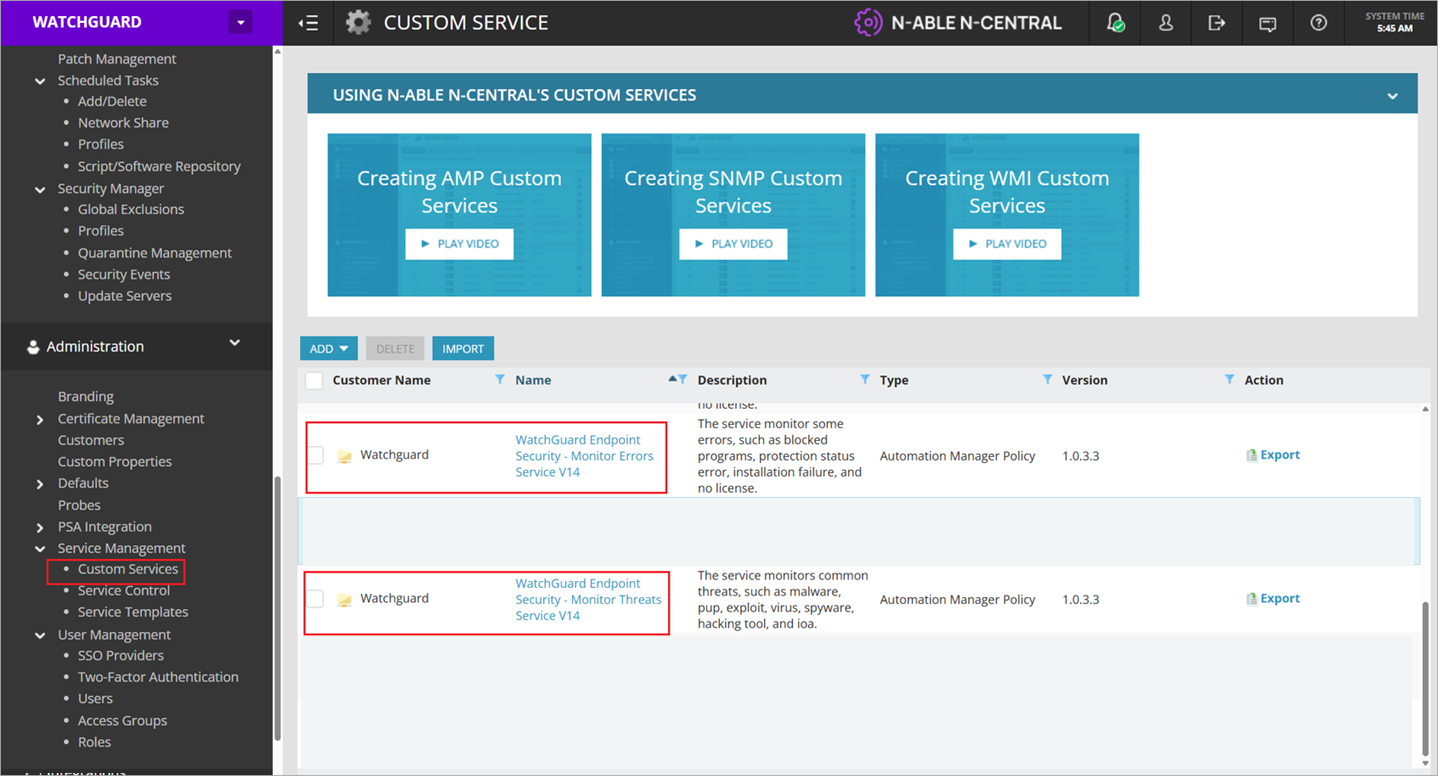
- Select one of the custom services you imported in with the service template:
- WatchGuard Endpoint Security - Monitor Errors Service
- WatchGuard Endpoint Security - Monitor Threats Service
The properties page for the selected service opens.

- On the Details tab, in the Input Parameters section, select the corresponding custom property from the drop-down list for each input parameter. For more information on the custom properties you created, go to Create Custom Properties in N-able N-central.
- Click Save.
- Repeat this procedure for the remaining custom service.
Create a Rule
You must create a rule to use service monitoring in all existing computers and any computers that you add in the future.
To create a rule, in N-central:
- Select Configuration > Monitoring > Rules.
The Rules page opens.

- Click Add.
The Rule Details page opens.
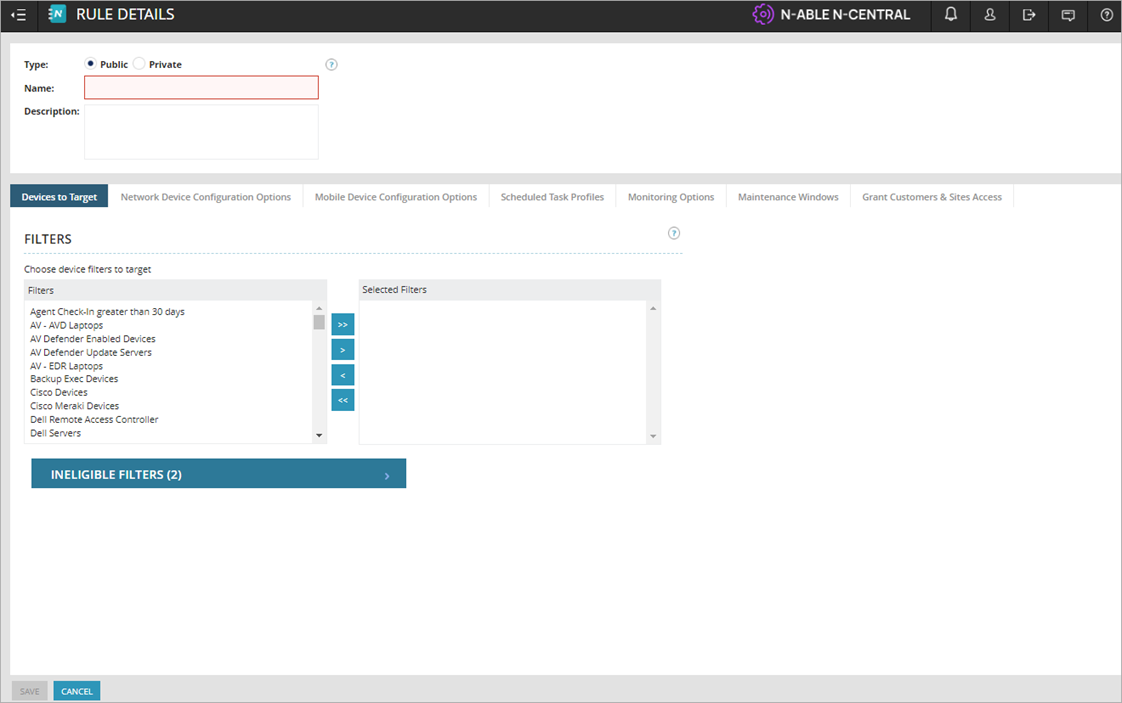
- Enter a name and description for the rule.
- On the Devices to Target tab, in the Filters section, move these filters to the Selected Filters column:
- Laptops - Windows
- Servers - Windows
- Workstations and Laptops - Windows

- Select the Monitoring Options tab.

- In the Service Templates section, from the Service Templates column, select the service template you imported and move it to the Selected Service Templates column.
- Select the Grant Customers & Sites Access tab.

- In the Customers/Site section, select the customer/site where you want to monitor the service.
- Click Save.
Configure Notifications
As part of service monitoring in N-central, you can configure notifications for failures that occur for items monitored by the WatchGuard service.
To configure notifications, in N-central:
- Select Configuration > Monitoring > Notifications.
The Notifications page opens.
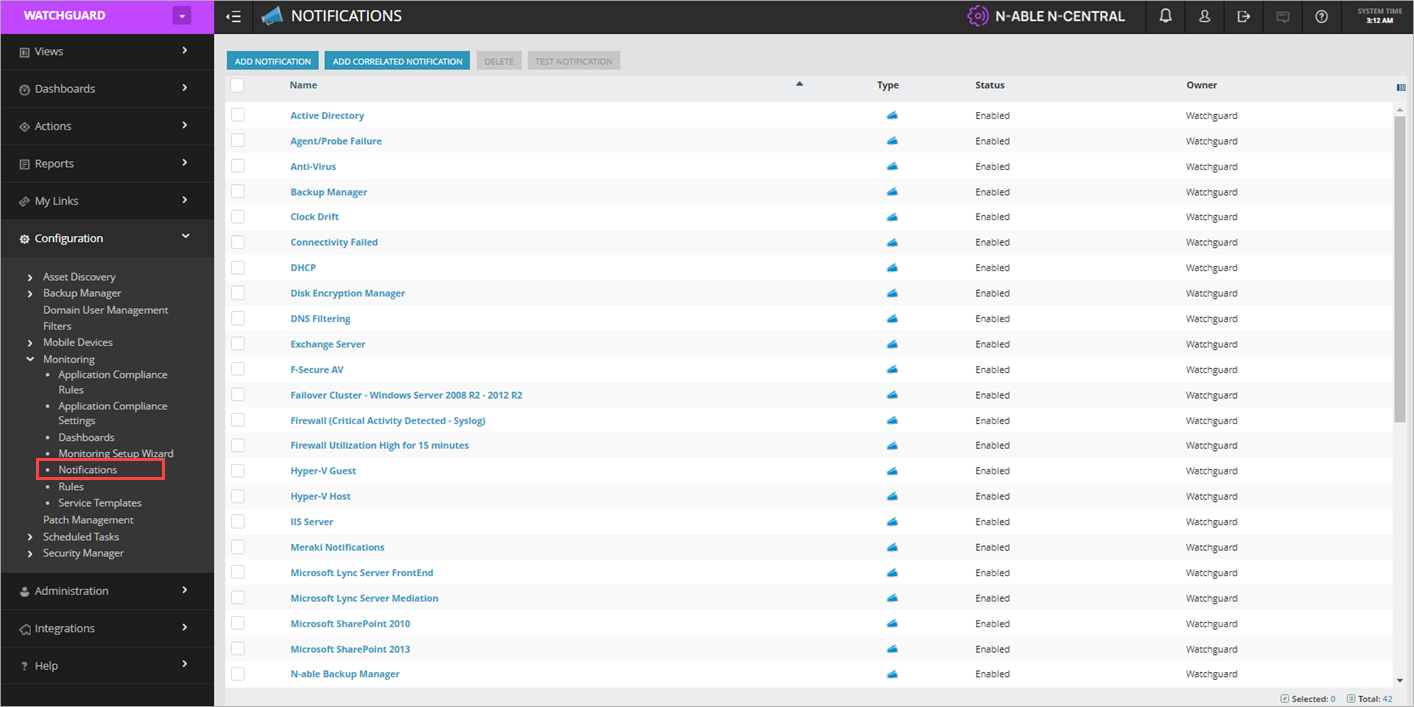
- Click Add Notification.
The Add Notification page opens.
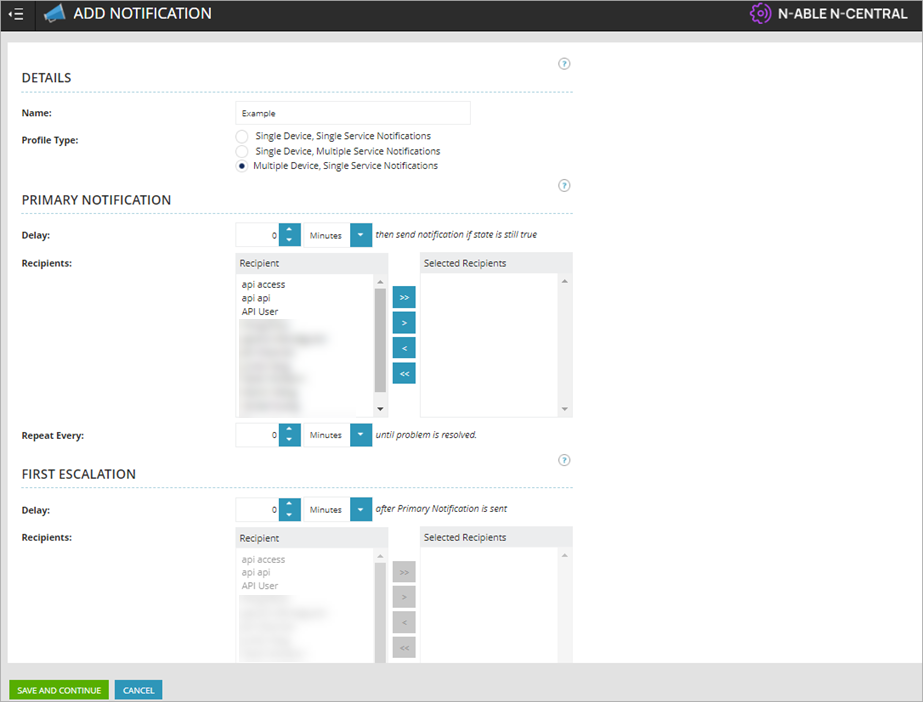
- Enter a name for the notification.
- For the Profile Type, select Multiple Device, Single Service Notifications.
- Select the recipients who you want to receive the notification.
- Click Save And Continue.
The Triggers Details page opens.

- Click Add.
The New Trigger Settings dialog box opens.
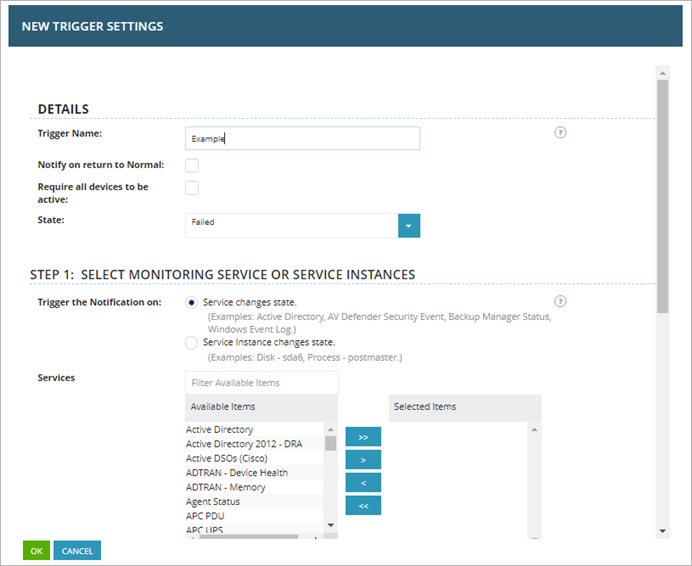
- Enter a name for the trigger.
- In the Step 1: Select Monitoring Service or Service Intakes, Services section, move WatchGuard Endpoint Security to the Selected Items column.
- In the Step 2: Apply the Notification Trigger to the Selected Devices, Rules section, move WatchGuard to the Selected Items column.

- Click OK.
Threats and Errors Monitored by the Service
The WatchGuard Endpoint Security service monitors for several different threats and errors. Based on what it detects, the service can return a Misconfigured, Normal, Failed, or Warning status. Each status is assigned a numerical value. This table shows the different statuses that might occur when the WatchGuard Endpoint Security service runs.
| Status | Numerical Value | Description |
|---|---|---|
|
Misconfigured |
0 | The WatchGuard Endpoint Security service is configured incorrectly and cannot run. |
| Normal | 1 | The WatchGuard Endpoint Security service ran correctly and did not detect any errors or threats. |
| Failed | 2 | The WatchGuard Endpoint Security service ran correctly and detected errors or threats. |
| Warning | 3 | The WatchGuard Endpoint Security service ran correctly and detected warnings. |
This table shows threats that the WatchGuard Endpoint Security service monitors. When a threat shows a Failed status, a notification is sent to the administrator.
| Monitored Threat | Failed Status | Normal Status | Mark Clean Capable |
|---|---|---|---|
| Malware | One or more malware executions detected. | No malware executions detected. | Yes |
| PUP | One or more PUP executions detected. | No PUP executions detected. | Yes |
| Exploit | One or more exploits detected. | No exploits detected. | Yes |
| Virus | One or more viruses detected. | No viruses detected. | Yes |
| Spyware | Spyware detected. | No spyware detected. | Yes |
| Hacking Tool | One or more hacking tools detected. | No hacking tools detected. | Yes |
|
Indicators of Attack (IOA) |
One or more indicators of attack detected. | No indicators of attack detected. | Yes |
This table shows errors that the WatchGuard Endpoint Security service reports. When the service detects an error, a Failed or Warning status shows and a notification is sent. In many cases, a reboot can resolve the error. Most errors detected by the service cannot be marked clean.
| Error | Failed Status | Normal Status | Reboot for Failed/Warning | Mark Clean Capable |
|---|---|---|---|---|
| Blocked Program | One or more programs were blocked. | No programs were blocked. | No | Yes |
| No License | There is no valid WatchGuard license assigned. | A valid WatchGuard license is assigned. | No | No |
| Installation Failure | WatchGuard Agent installation not successful. | WatchGuard Agent installation successful. | No | No |
| Protection Status Error | Protection status is not correct. | Protection status is correct. | Yes | No |
| Pending restart | There is a pending restart. | There is no pending restart. | Yes | No |
If WatchGuard Endpoint Security detects a threat or error, the Status Details page in Service Monitoring shows details of the detections in JSON format that you can copy.

{ "HostName": "MonWinHost",
"Malware": {
"StatusId": 1,
"Details": ""
},
"Pup": {
"StatusId": 1,
"Details": ""
},
"Exploit": {
"StatusId": 1,
"Details": ""
},
"Virus": {
"StatusId": 2,
"Details": "C:\\ProgramData\\endpoint\\malware\\VirusND.EXE "
},
"Spyware": {
"StatusId": 2,
"Details": "C:\\ProgramData\\endpoint\\malware\\SpyNB.EXE, C:\\ProgramData\\endpoint\\malware\\Spy.EXE"
},
"HackingTool": {
"StatusId": 2,
"Details": "C:\\ProgramData\\endpoint\\malware\\hack.EXE"
},
"Ioa": {
"StatusId": 1,
"Details": ""
},
"BlockedProgram": {
"StatusId": 1,
"Details": ""
},
"ProtectionStatusError": {
"StatusId": 3,
"Details": "Device protection in error status. Please login to WatchGuard console to get more details and take immediate actions."
},
"PendingRestartError": {
"StatusId": 3,
"Details": "A restart is pending in the device."
},
"NoLicense": {"StatusId": 2,
"Details": "The device has not a license assigned."
},
"InstallationFailure": {
"StatusId": 2,
"Details": "An error occurred in the installation of WatchGuard agent. Please login to WatchGuard console to get more details and take immediate actions."
}
}
Mark Clean
When the WatchGuard Endpoint Security service is configured to run frequently, duplicate threats or errors might appear. To avoid these duplicates, WatchGuard includes a Mark Clean functionality. With this functionality, you can manually designate a device with resolved or duplicate threats as clean. When a device is marked clean, all previous threats and errors no longer appear. When the service detects a new threat or error, the device is no longer marked clean and appears again in the list.
To use the Mark Clean functionality for a single device, in N-central:
- Select Configuration > Filters > Add.
- Create a filter to find devices with these conditions: Monitoring > N-able N-central service in status > WatchGuard Endpoint Security - Monitor Threats Service > Equal To > Failed.
- Select Or, then add these conditions: Monitoring > N-able N-central service in status > WatchGuard Endpoint Security - Monitor Errors Service > Equal To > Failed.
- Select Dashboards > Manage Dashboards > Add.
- Create a dashboard to use the filter you created.
- From the dashboard you created, select the device you want to mark clean.
- Select Tools > Task Execution.
The Run Task settings open.

- From the Type drop-down list, select Automation Policy.
- From the Repository Item drop-down list, select WatchGuard Endpoint Security - Mark Clean.
- From the Run With drop-down list, select Local System Credentials.
- For Execution Timeout, enter 1 hour.
- In the Input Parameters section, select these parameters:
- WatchGuard Endpoint Security - API Key
- WatchGuard Endpoint Security - Client Account ID
- WatchGuard Endpoint Security Integration - Service Provider Account ID
- In the WatchGuard Endpoint Security Integration - Mark Clean Threat Keys text box, enter the keys for the items you want to mark clean (malware, pup, exploit, virus, spyware, hackingtool, ioa, blockedprogram). If you want to mark more than one type of threat as clean, enter the item keys separated by commas with no spaces).
- Click Run.
You can also configure scheduled tasks to use the Mark Clean functionality on multiple devices. Create the scheduled task with the filter you created as a Target and use the same input parameters used to mark a single device clean.
About the WatchGuard Endpoint Security Plug-in for N-able N-central
Automation Policies for Windows Devices in N-able N-central
Run Tasks on macOS Devices in N-able N-central
Manage the WatchGuard Endpoint Security Plug-in for N-able N-central