Applies To: Endpoint Security Elite, Endpoint Security 360, Endpoint Security Prime, Endpoint Security Basic
Endpoint Security's Web Access Control feature uses content categories to filter groups of websites. A website is added to a content category when the content of the website meets the criteria for the category. From the WatchGuard Security Portal, you can look up the content categories for a website.
To view the content category for a site:
- Open a web browser and go to the WatchGuard Security Portal at https://www.watchguard.com/securityportal/UrlCategorization.aspx.
- In the URL(s) text box, type the website URL or IP address. To specify multiple URLs or IP addresses, separate each with a space, comma, or semicolon.
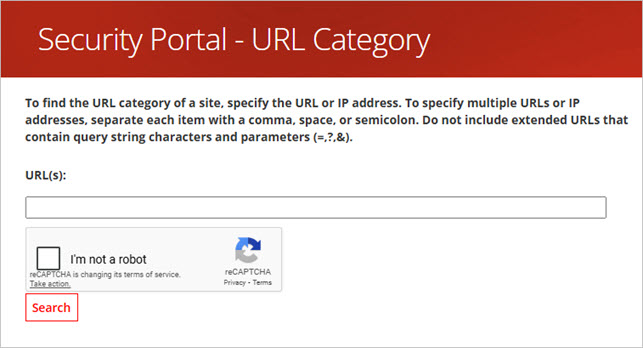
- Select the I'm not a robot check box.
- Complete the reCAPTCHA task, if requested.
- Click Search.
The categorization for each URL or IP address appears in the Results section of the page.
Submit a Category Change Request for a Website
If a website is uncategorized or mis-categorized, you can submit a change request from the WatchGuard Security Portal.
To submit a category change request for a website:
- Open a web browser and go to www.watchguard.com/securityportal/UrlCategorization.aspx.
- If you are not already logged in to the WatchGuard website, enter your username and password. Click Log In.
The WatchGuard Security Portal appears.

- In the Enter uncategorized/miscategorized URLs text box, enter the website URL and a suggested content category, separated by a space, comma, or semicolon. Type each suggestion on a separate line. For example:
http://www.seattletimes.com, News and Mediahttp://www.soccer.com, Sports
- Select the I'm Not a Robot check box.
- Complete the reCAPTCHA task, if requested.
- Click Submit.