Applies To: Endpoint Security Elite, Endpoint Security 360, Endpoint Security Prime, Endpoint Security Basic
When anti-theft is enabled, you can send a remote alarm and message to the Android or iOS device. By default, the alarm sounds immediately, even if the device is locked. The screen displays the message and phone number you specify.
For information on anti-theft, go to Configure Mobile Device Security Settings.
Your operator role determines what you can see and do in WatchGuard Cloud. Your role must have the Use Anti-Theft Protection for Mobile Devices permission to view or configure this feature. For more information, go to Manage WatchGuard Cloud Operators and Roles.
To send a remote alarm to a device:
- In WatchGuard Cloud, select Monitor > Endpoint Security.
- Select Computers.
- From the left pane, select
 My Organization.
 - Select the Android or iOS group.
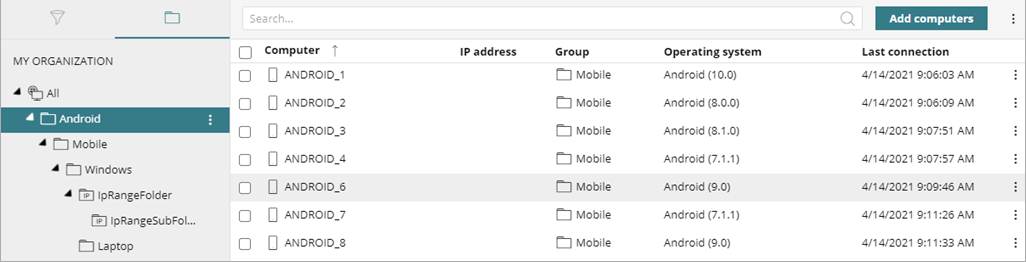
- From the list of devices, select the device you want to send an alarm to.
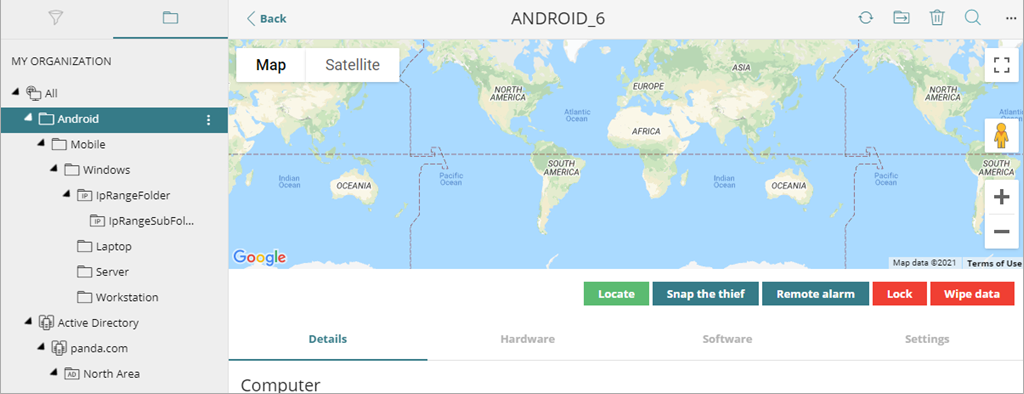
- Click Remote Alarm.
The Remote Alarm dialog box opens.

- In the text box, enter a message to display on the device.
- In the Contact Phone text box, type a phone number to display on the device.
- To prevent an alarm sound, select the Don't Play Any Sound check box.
- Click Send Alarm.
Configure Mobile Device Security Settings