The Huawei Switch uses the sFlow protocol to export data about IP traffic that enters its interfaces and exports this data as sFlow fields to a sFlow collector. The sFlow collector is a server used to collect network traffic and upload to WatchGuard NDR to analyze for security, administration, accounting, and troubleshooting.
WatchGuard provides integration instructions to help customers configure WatchGuard products to work with products created by other organizations. If you want more information or technical support about how to configure a third-party product, go to the documentation and support resources for that product.
This document describes how to integrate the Huawei switch with WatchGuard NDR using the sFlow protocol.
Contents
Integration Summary
The hardware and software used to complete the steps outlined in this document include:
- Huawei Switch S5735S-S48T4S with VPR(R) software version 5.170 V200R021C10SPC600
- WatchGuard Cloud account with a WatchGuard NDR or Total NDR license
- WatchGuard NDR Collection Agent (for more information, go to About WatchGuard NDR Collection Agents)
Topology
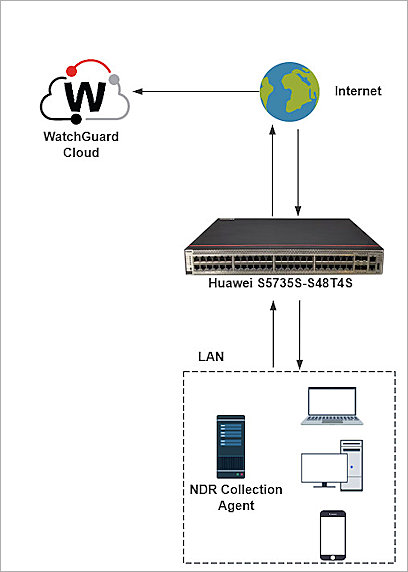
This diagram shows the integration topology of the Huawei switch and WatchGuard NDR.
Configure the WatchGuard NDR Collection Agent
Make sure the WatchGuard NDR Collection Agent is installed on your Windows or Linux computer, and the status of the collection agent is Success. For detailed instructions about the WatchGuard NDR Collection Agent installation, go to Configure Collection Agents for WatchGuard NDR (Windows Computers) or Configure Collection Agents for WatchGuard NDR (Linux Computers).
Configure the Basic Settings on Huawei Switch
For the basic settings such as VLAN, go to Huawei Enterprise Support.
Configure sFlow on Huawei Switch
The sFlow feature on the Huawei Switch S5735S-S48T4S can only be configured in CLI mode.
To configure your Huawei switch as a sFlow exporter:
- Log in to the CLI mode of Huawei Switch S5735S-S48T4S.
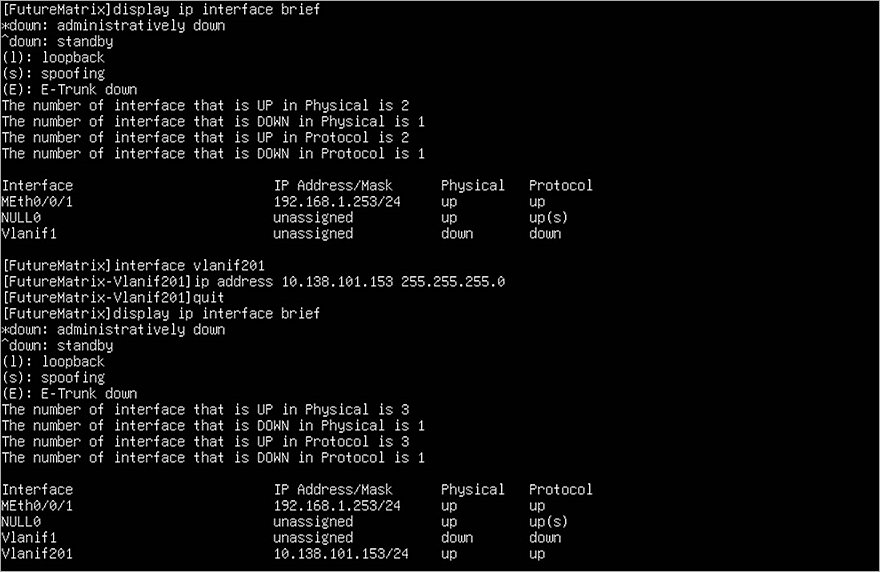
- Enter the following commands to configure and verify the IP address and port VLAN configurations of the switch.
In configuration mode, enter: - Enter the following commands to create a VLANIF for one of the VLANs that belongs to the subnet that you want to monitor.
Confirm the subnet for the traffic you want to collect and configure a VLANIF for the VLAN of that subnet. In our example, we created a VLANIF for the subnet 10.138.101.0/24 with IP 10.138.101.153 for VLAN 201. - Configure the sFlow-agent and sFlow collector.
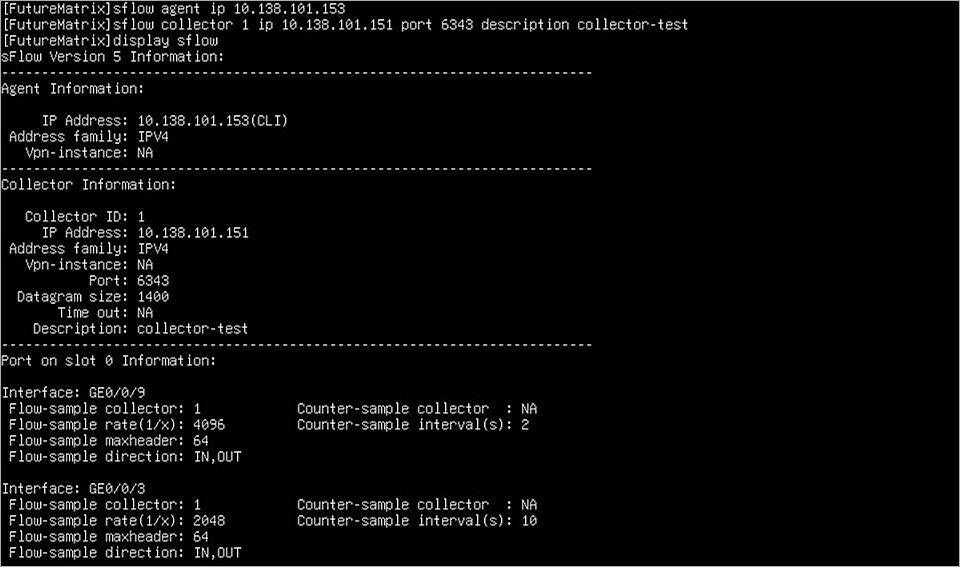
Configure the sFlow agent that monitors the traffic and forwards the traffic through itself to the collector. Configure the sFlow agent ip <interface IP>. In our example, we enter the VLANIF we created in Step 3. - Configure the sFlow sampling on the specified interfaces. In our example, we enabled sFlow sampling on GE0/0/12.
system-view
Verify the IP configuration of the switch:
display ip interface brief
Verify the types and VLAN ID of each port:
display port vlan
interface vlanif 201
ip address 10.138.101.153 255.255.255.0
sFlow agent ip 10.138.101.153
Configure the sFlow collector that collects the traffic from the sFlow agent and uploads the traffic to WatchGuard NDR. The IP should be the IP of the WatchGuard NDR Collection Agent.
Configure the sFlow collector <integer> ip <collector ip> port <port number>:
sFlow collector 1 ip 10.138.101.151 port 6343 description collector-test
Confirm the sFlow configuration:
display sflow
The interface where you enabled sFlow sampling should be the same VLAN with the sFlow agent and sFlow collector.
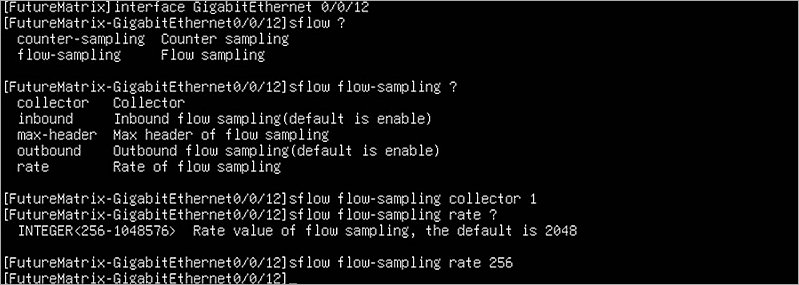
Go to the specified interface:
interface GigabitEthernet 0/0/12
Enable sFlow sampling on this interface. There are two types of sampling methods: counter-sampling and flow-sampling. Because flow-sampling collects more comprehensive traffic information, we used flow-sampling in our example.
Configure sFlow flow-sampling for this interface so the interface can transfer the traffic to the collector:
sFlow flow-sampling collector 1
Configure the flow-sampling rate. The smaller the value of this rate, the more traffic will be sampled on this interface within the same period of time. The range of this rate is from 256 to 1048576. In our example, we set it to 256.
sFlow flow-sampling rate 256
For other settings of sFlow flow-sampling, we recommend the default settings. If you want to modify other settings, go to the Huawei Support Center.
- Type these commands to quit the interface to verify and save the configuration:
quit
Confirm the sFlow configuration:
display sflow
Save the configuration:
save
For more information, go to Configure sFlow in the Huawei documentation.
Test the Integration
To test the Huawei Switch integration with WatchGuard NDR:
- Log in to your WatchGuard Cloud account.
- Select Configure > NDR Integrations > Collection Agents. If you have a Service Provider account, you must select an account from Account Manager.
- Select the WatchGuard NDR Collection Agents tab to view the Last Activity column of your collection agent. This column shows the last time the collection agent uploaded the sFlow records to WatchGuard NDR. It might take a few hours for the first upload.
- From the navigation menu, select Monitor > NDR to view the Network Summary page.

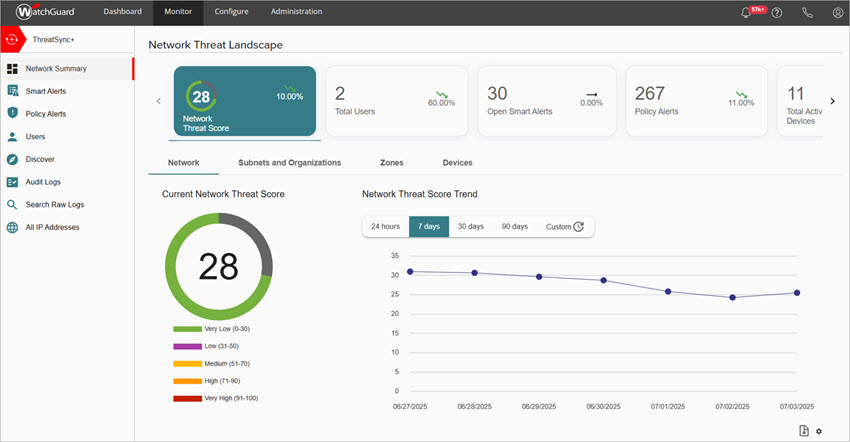
For more information about NDR, go to NDR.