The Palo Alto Networks firewall uses the NetFlow protocol to export data about IP traffic that enters its interfaces and exports this data as NetFlow fields to a NetFlow collector. The NetFlow collector is a server used to collect network traffic and upload to WatchGuard NDR to analyze for security, administration, accounting, and troubleshooting.
WatchGuard provides integration instructions to help customers configure WatchGuard products to work with products created by other organizations. If you want more information or technical support about how to configure a third-party product, go to the documentation and support resources for that product.
This document describes how to integrate the Palo Alto Networks firewall with WatchGuard NDR with the NetFlow protocol.
Contents
Integration Summary
The hardware and software used to complete the steps outlined in this document include:
- Palo Alto PA-220 v10.2.4
- WatchGuard Cloud account with a WatchGuard NDR or Total NDR license
- WatchGuard NDR Collection Agent (for more information, go to About WatchGuard NDR Collection Agents)
Topology
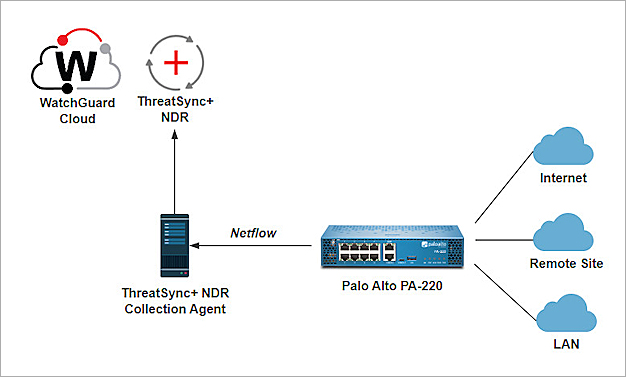
This diagram shows the integration topology of the Palo Alto Networks firewall and WatchGuard NDR.
Configure the WatchGuard NDR Collection Agent
Make sure the WatchGuard NDR Collection Agent is installed on your Windows or Linux computer, and the status of the collection agent is Success. For detailed instructions about the WatchGuard NDR Collection Agent installation, go to Configure Collection Agents for WatchGuard NDR (Windows Computers) or Configure Collection Agents for WatchGuard NDR (Linux Computers).
Configure the Palo Alto Firewall
Before you can configure Palo Alto NetFlow, configure these basic settings:
- Log in to the Palo Alto Web UI at https://<IP address of the Palo Alto device>.
- Configure the interfaces.
- Configure the zones.
- Configure the virtual router to the Internet.
- Configure a Source Network Address Translation (SNAT).
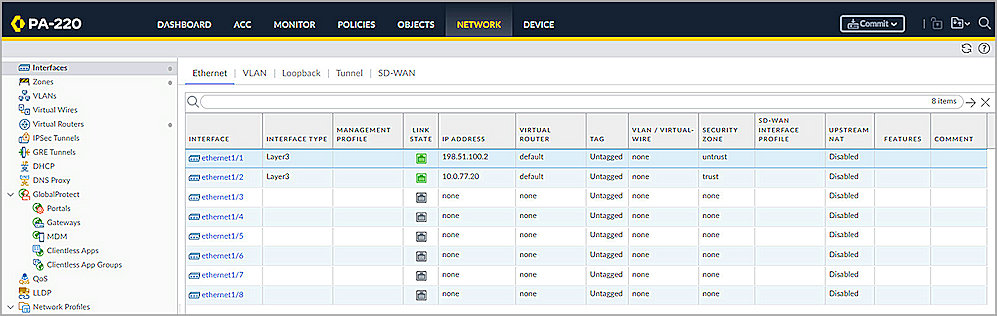

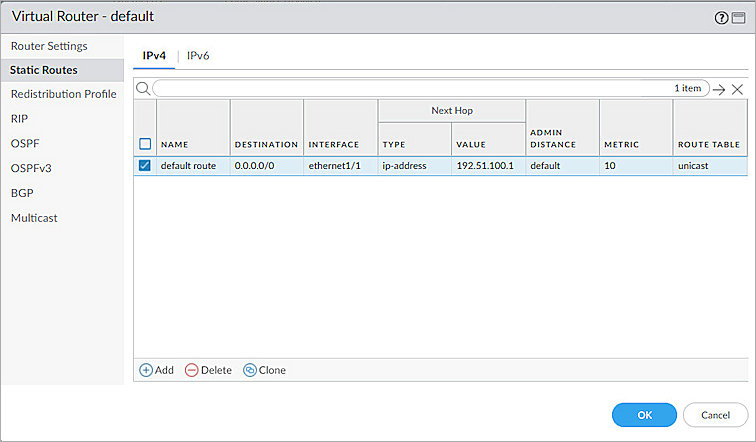

For information about how to configure these settings, go to the Palo Alto documentation.
Configure NetFlow Profile
To configure your Palo Alto firewall as a NetFlow exporter:
- From the navigation bar, select Device.
- From the left navigation pane, select Server Profiles > NetFlow.
- Click Add to add a new NetFlow profile.
The NetFlow Server Profile dialog box opens. - In the Name text box, enter a descriptive name.
- Click Add to add a new NetFlow Server.
- In the Name text box, enter a name to identify the NetFlow Server.
- In the NetFlow Server text box, enter the IP address of your WatchGuard NDR Collection Agent.
- In the Port text box, enter 2055.
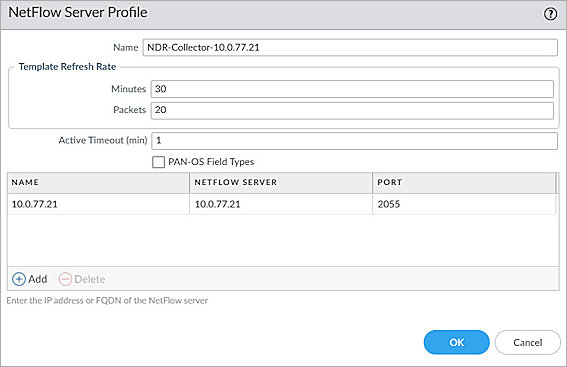
Keep the default value for other settings.
- Click OK to save the profile.
The profile is saved and appears in the list.
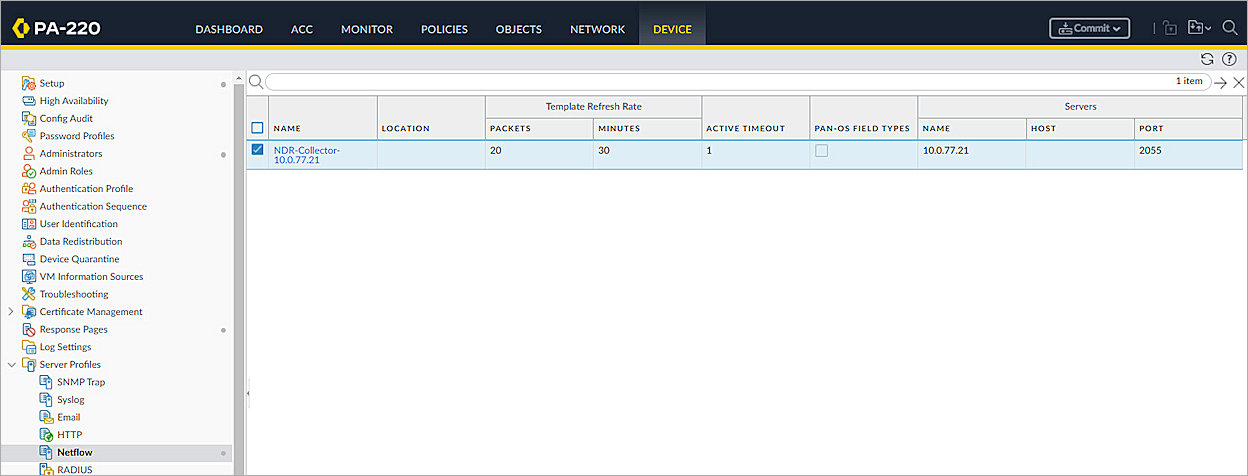
Configure the Service Route Configuration
The Palo Alto Firewall uses the management interface for all the service routes by default. This means the NetFlow records go through the management interface to your management network by default.
To change the default NetFlow service route:
- From the navigation bar, select Device.
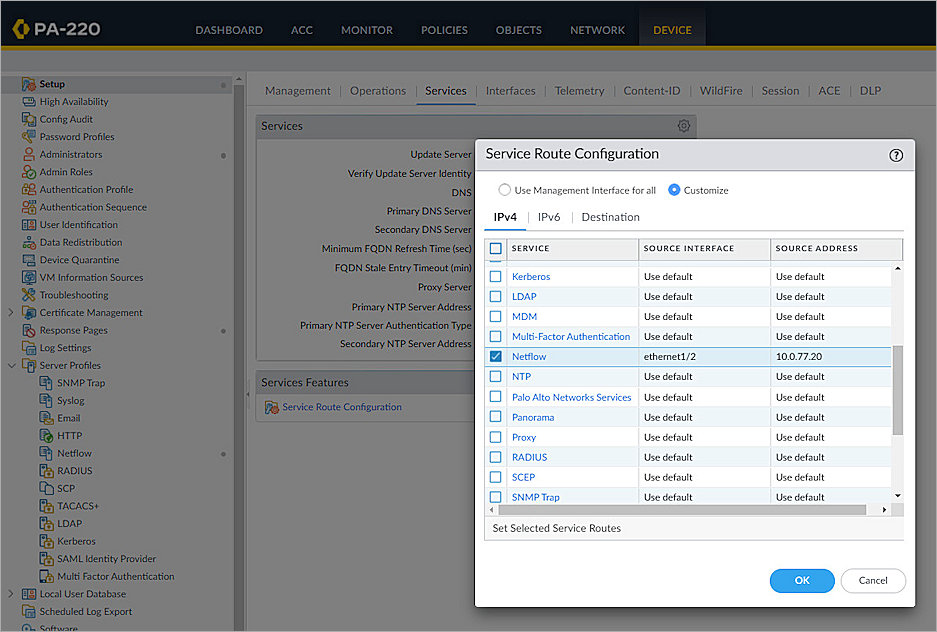
- From the left navigation pane, select Setup > Services.
- From the Services Features, select Service Route Configuration.
The Service Route Configuration dialog box opens. - Select Customize.
- Select the IPv4 tab.
- Scroll down the table and click Netflow.
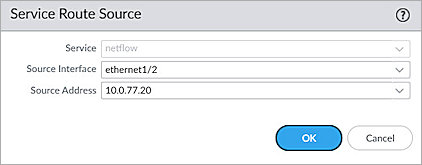
- From the Source Interface drop-down list, select an interface that sends NetFlow records. For example, ethernet1/2. The default interface is MGT.
- From the Source Address drop-down list, select a source IP address for NetFlow records.
- Click OK to save the changes.
Assign the NetFlow Profile to the Interface
The NetFlow profile you created can be assigned to an existing interface, so that all traffic flowing through that interface is exported to the specified server described in the previous section. The interface that sends NetFlow records does not have to be the same as the interface that collects the records.
To assign the NetFlow profile to the interface:
- From the navigation bar, select Network.
- From the left navigation pane, select Interface.
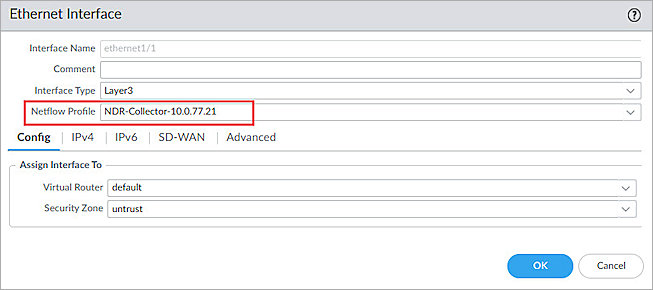
- Click the Interface you want to collect the NetFlow records for. For example, ethernet1/1.
The Ethernet Interface dialog box opens. - From the Netflow Profile drop-down list, select the NetFlow profile you created.
- Click OK to save the changes.
- (Optional) Repeat Steps 3-5 to assign the NetFlow profile to other interfaces that you want to collect NetFlow records for.
Commit the Configuration
To commit your configuration changes:
- From the upper-right corner, click Commit.
- In the Commit dialog box, select Commit All Changes. Click Commit to commit your configuration.
Test the Integration
To test the Palo Alto Firewall integration with WatchGuard NDR:
- Log in to your WatchGuard Cloud account.
- Select Configure > NDR Integrations > Collection Agents. If you have a Service Provider account, you must select an account from Account Manager.
- Select the NDR Collection Agents tab to view the Last Activity column of your collection agent. This column shows the last time the collection agent uploaded the NetFlow records to WatchGuard NDR. It might take a few hours for the first upload.
- From the navigation menu, select Monitor > NDR to view the Network Summary page.


For more information about NDR, go to NDR.