The Fortinet firewall uses the NetFlow protocol to export data about IP traffic that enters its interfaces and exports this data as NetFlow fields to a NetFlow collector. The NetFlow collector is a server used to collect and upload network traffic to WatchGuard NDR to analyze for security, administration, accounting, and troubleshooting.
WatchGuard provides integration instructions to help customers configure WatchGuard products to work with products created by other organizations. If you want more information or technical support about how to configure a third-party product, go to the documentation and support resources for that product.
This document describes how to integrate the Fortinet FortiGate 60E with WatchGuard NDR using the NetFlow protocol.
Contents
Integration Summary
The hardware and software used to complete the steps outlined in this document include:
- Fortinet FortiGate 60E with FortiOS v7.4.7 or higher
- WatchGuard Cloud account with a WatchGuard NDR or Total NDR license
- WatchGuard NDR Collection Agent (for more information, go to About WatchGuard NDR Collection Agents)
Topology
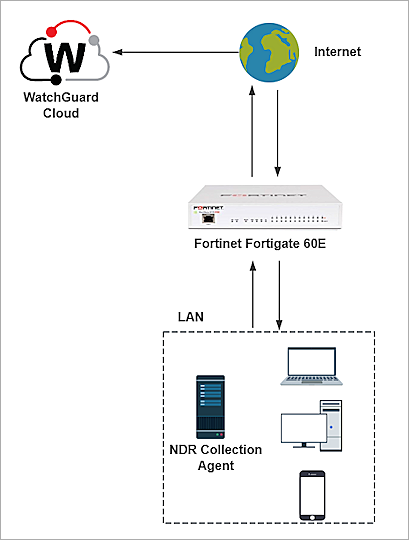
This diagram shows the integration topology of the Fortinet firewall and WatchGuard NDR.
Configure the WatchGuard NDR Collection Agent
Make sure the WatchGuard NDR Collection Agent is installed on your Windows or Linux computer, and the status of the collection agent is Success. For detailed instructions about the WatchGuard NDR Collection Agent installation, go to Configure Collection Agents for WatchGuard NDR (Windows Computers) or Configure Collection Agents for WatchGuard NDR (Linux Computers).
Configure the Fortinet Firewall
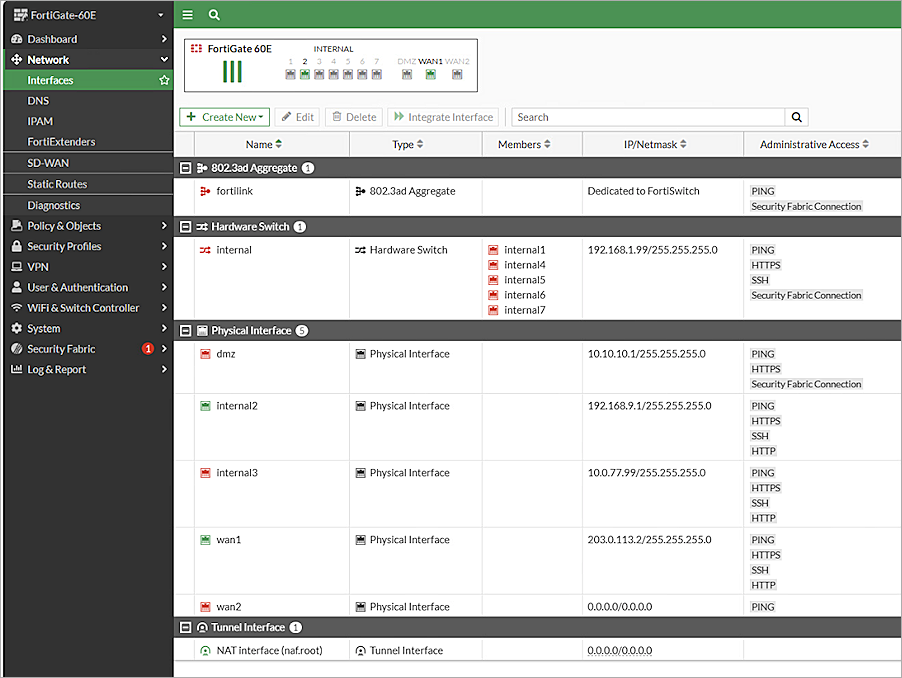
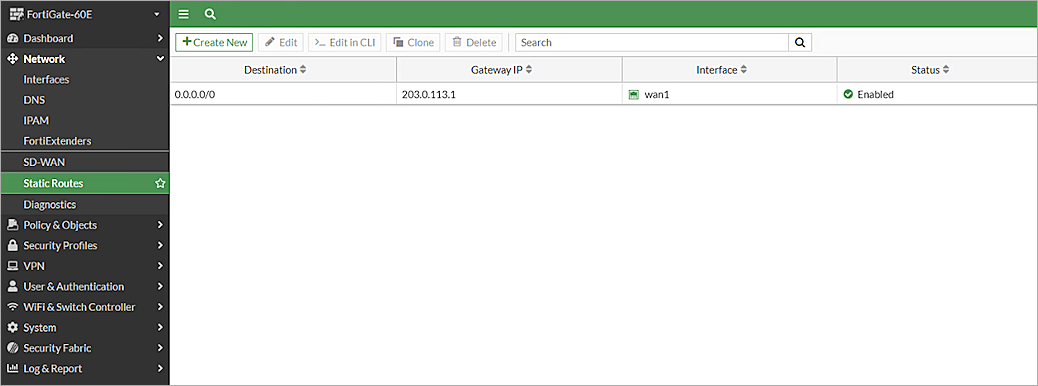
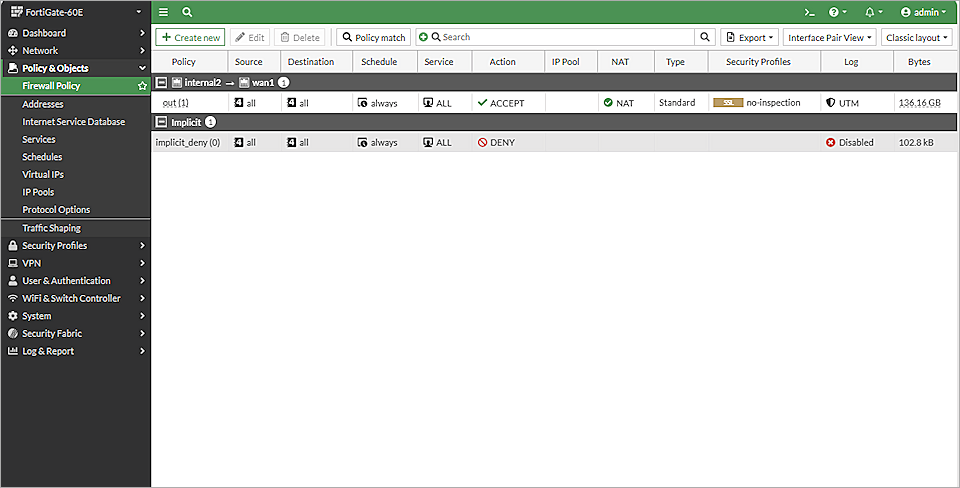
Before you can configure Fortinet NetFlow, configure these basic settings.
- Log in to the Fortinet web UI at https://<IP address of the Fortinet device>.
- Configure the interfaces. In this example, we configured two interfaces: wan1 is the interface outside the firewall and internal2 is the interface inside the firewall.
- Configure the static route to the Internet.
- Configure the firewall policy to allow the internal traffic out through the wan interface.
For more information, go to the Fortinet documentation.
Configure NetFlow on Fortinet Firewall
The NetFlow feature on the FortiGate 60E can only be configured in CLI mode. To configure your Fortinet firewall as a NetFlow exporter:
- Log in to the CLI mode of FortiGate 60E. For information about how to log in to the CLI mode, go to the Fortinet documentation.
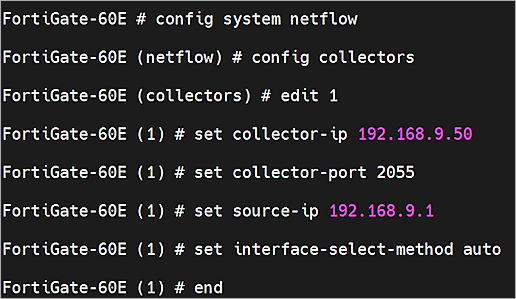
- Enter the following commands to configure the NetFlow collector. Replace the source-ip and collector-ip in the commands to match your configuration.
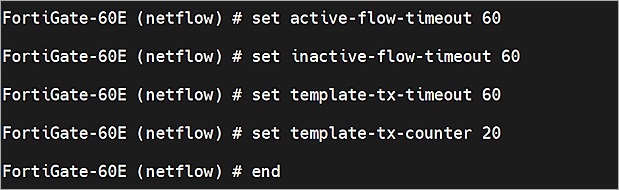
- Use these commands to configure the timeout and counter attributes for NetFlow data transmission to the collector. We recommend these settings:
-
Configure the NetFlow sampler on an interface. For example, configure the sampler on internal2.
Enter the global port configuration mode:
config system interface
Select the interface that you want to configure.
edit internal2
Enable the NetFlow sampler:
set netflow-sampler both
To save the configuration, enter end.

- (Optional) Enter the following commands to verify that the collector is configured successfully. Replace the source-interface and collector-ip in the command to match your configuration.
To begin the configuration of the NetFlow global parameters, enter:
config system netflow
Configure the collector to collect NetFlow traffic in its subnet:
config collectors
Add or edit the collector. In this example, we enter edit 1.
edit 1
Set the collector-ip in the internal subnet. For example, 192.168.9.50:
set collector-ip 192.168.9.50
Set the collector-port to receive the NetFlow traffic in its subnet. The NetFlow default port is 2055.
set collector-port 2055
Set the source-ip for communication with the NetFlow agent. The source IP address is the address of the internal subnet interface where the collector is located. For example, 192.168.5.19.
set collector-ip 192.168.9.1
Select the collector interface-select-method to specify how the collector selects an outgoing interface to reach the server.
set the interface-select-method auto
To save the configuration, enter end.
set active-flow-timeout 60
set inactive-flow-timeout 60
set template-tx-timeout 60
set template-tx-counter 20
To save the configuration, enter end.
Capture the packets to the collector on the interface you configured.
!diagnose sniffer packet <source-interface> 'host <collector-ip> and <collector-port>'
diagnose sniffer packet internal2 'host 192.168.9.50 and 2055'
Verify that the traffic is sent to the collector through port 2055.

For more information about NetFlow, go to the Fortinet documentation.
Test the Integration
To test the Fortinet Firewall integration with WatchGuard NDR:
- Log in to your WatchGuard Cloud account.
- From the navigation menu, select Configure > NDR Integrations > Collection Agents. If you have a Service Provider account, you must select an account from Account Manager.
- Select the NDR Collection Agents tab to view the Last Activity column of your collection agent. This column shows the last time the collection agent uploaded the NetFlow records to WatchGuard NDR. It might take a few hours for the first upload.
- From the navigation menu, select Monitor > NDR to view the Network Summary page.

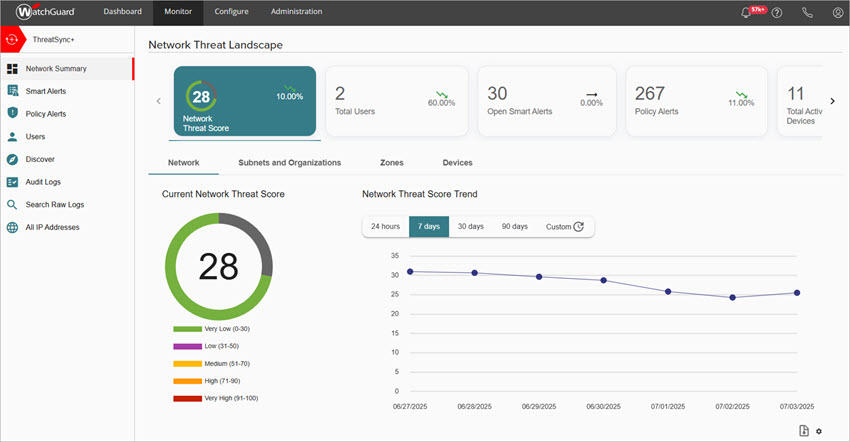
For more information about NDR, go to NDR.