The Check Point firewall uses the NetFlow protocol to export data about IP traffic that enters its interfaces and exports this data as NetFlow fields to a NetFlow collector. The NetFlow collector is a server used to collect network traffic and upload to WatchGuard NDR to analyze for security, administration, accounting, and troubleshooting.
WatchGuard provides integration instructions to help customers configure WatchGuard products to work with products created by other organizations. If you want more information or technical support about how to configure a third-party product, go to the documentation and support resources for that product.
This document describes how to integrate the Check Point firewall with WatchGuard NDR using the NetFlow protocol.
Contents
Integration Summary
The hardware and software used to complete the steps outlined in this document include:
- Check Point L-72W/770 with R77.20.40
- WatchGuard Cloud account with a WatchGuard NDR or Total NDR license
- WatchGuard NDR Collection Agent (for more information, go to About WatchGuard NDR Collection Agents)
Topology
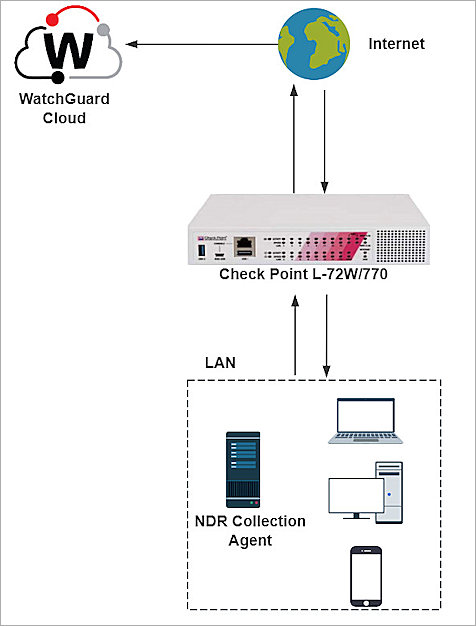
This diagram shows the integration topology of the Check Point Networks firewall and WatchGuard NDR.
Configure the WatchGuard NDR Collection Agent
Make sure the WatchGuard NDR Collection Agent is installed on your Windows or Linux computer, and the status of the collection agent is Success. For detailed instructions about the WatchGuard NDR Collection Agent installation, go to Configure Collection Agents for WatchGuard NDR (Windows Computers) or Configure Collection Agents for WatchGuard NDR (Linux Computers).
Configure the Check Point Firewall
Before you can configure Check Point NetFlow, configure these basic settings.
- Log in to the Check Point Web UI at https://<IP address of the Check Point device>:<port of the Check Point device>.
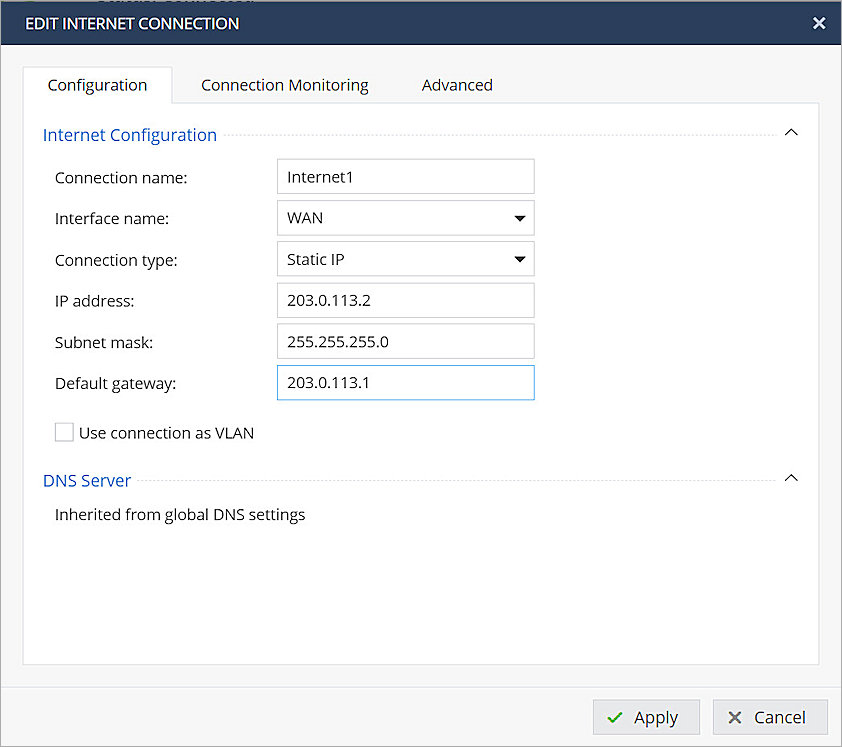
- Configure the Internet connection.
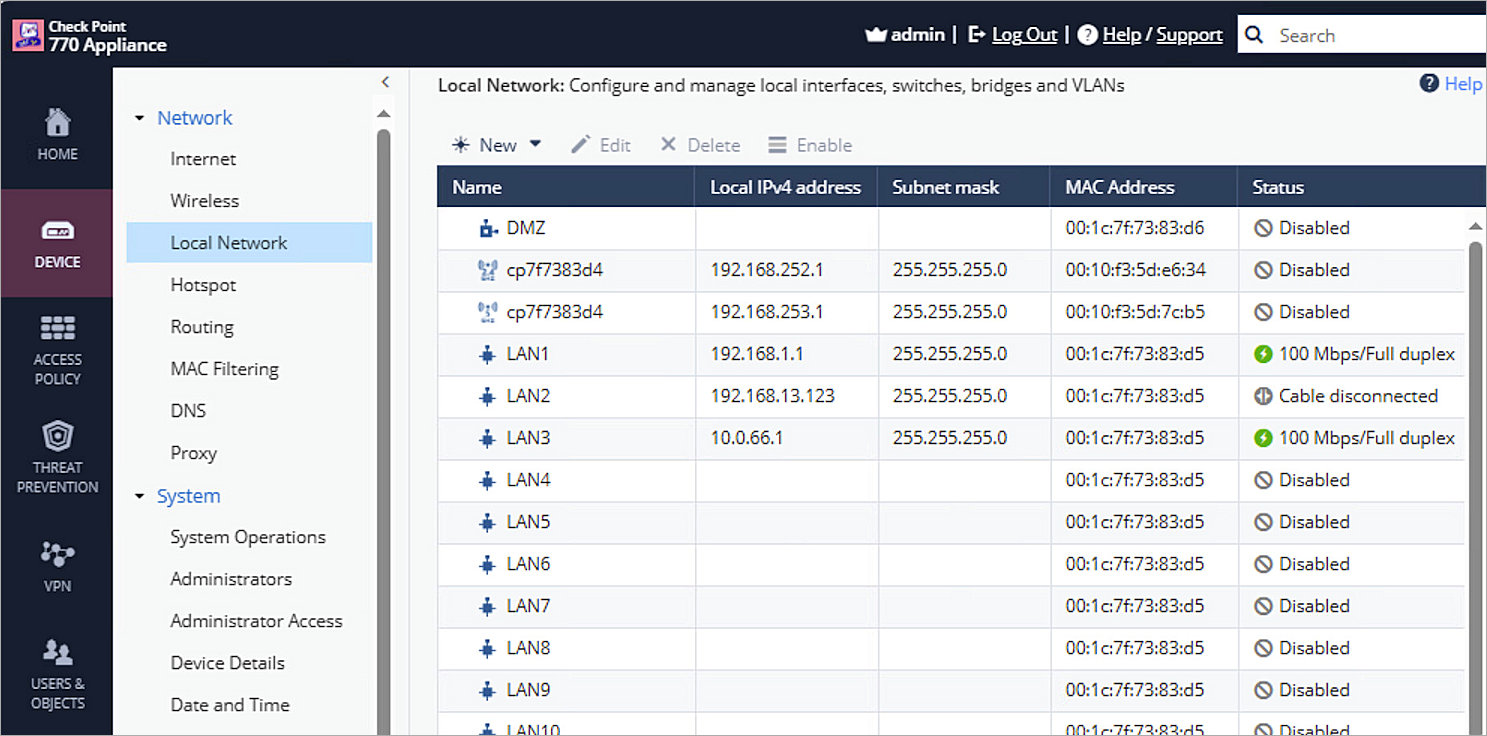
- Configure the local subnet that allows the collection agent to gather NetFlow traffic. In our example, we configured LAN3 with subnet 10.0.66.0/255.255.255.0.
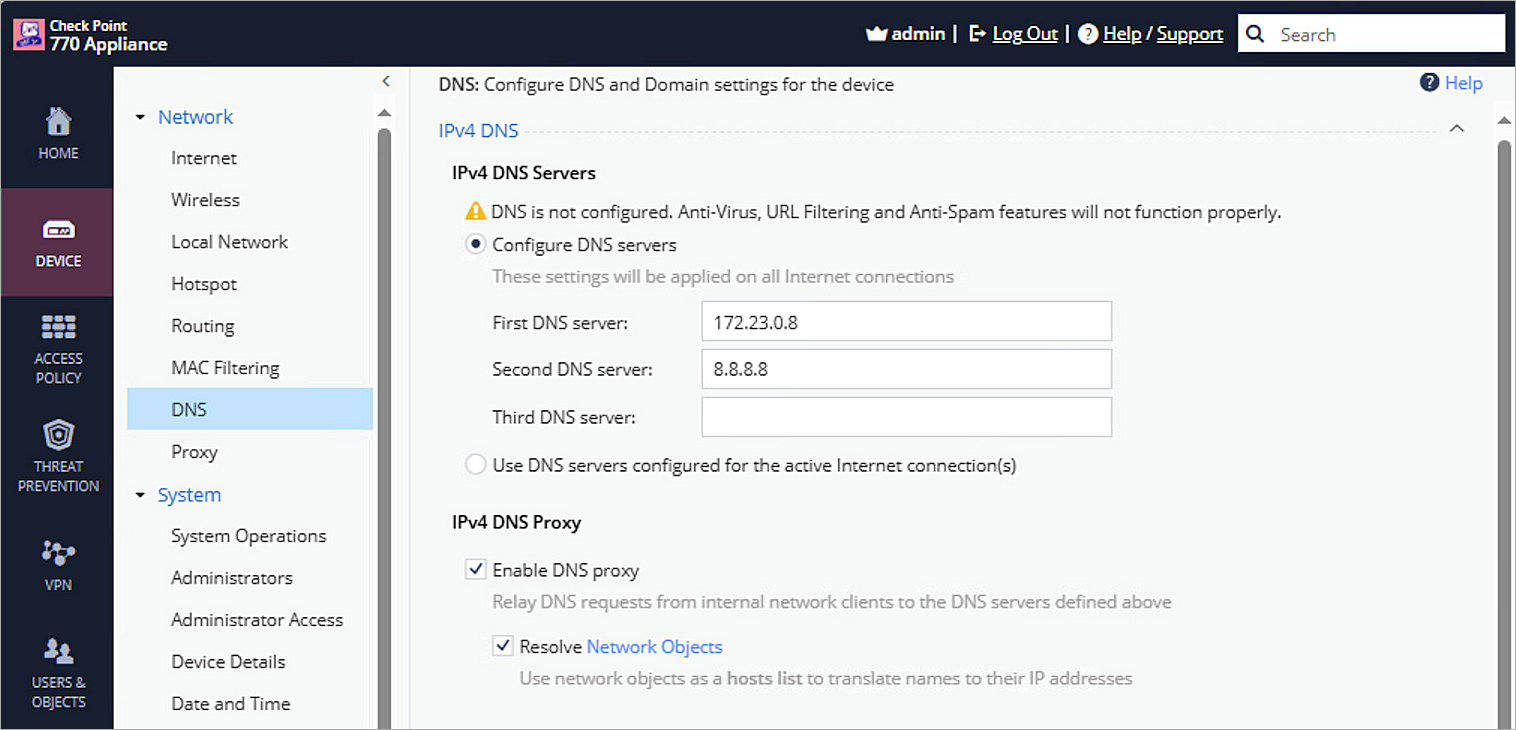
- Configure the DNS to resolve domains.
- Create a network object for the local subnet to facilitate policy configurations in the next steps. In our example, we created internal-1 for the local subnet.
- Configure NAT for traffic from the internal network to the Internet.
- Configure the policy to allow the internal traffic out through the WAN interface.
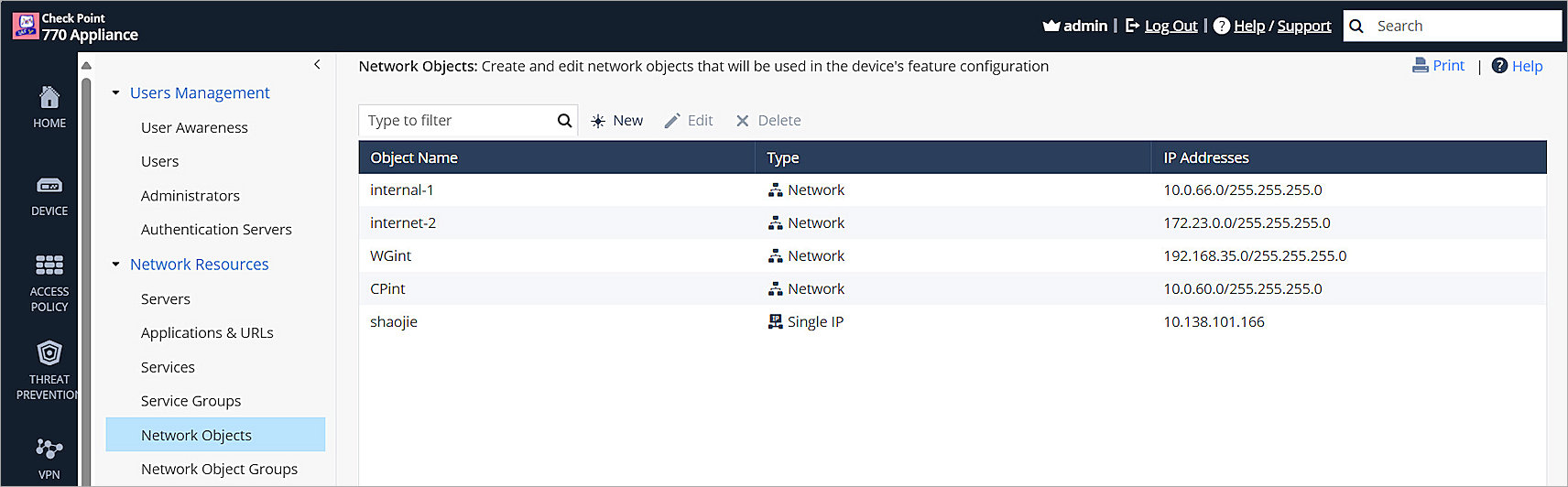
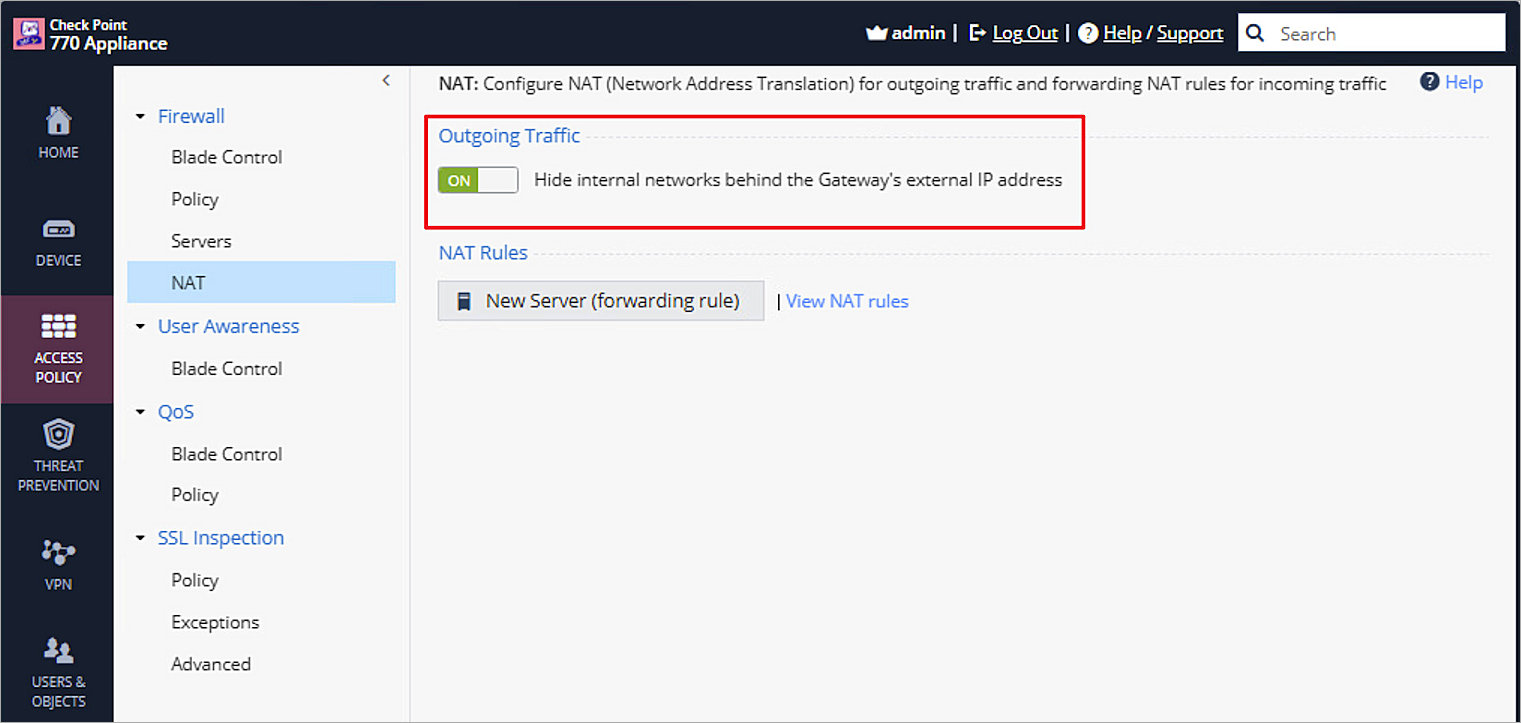
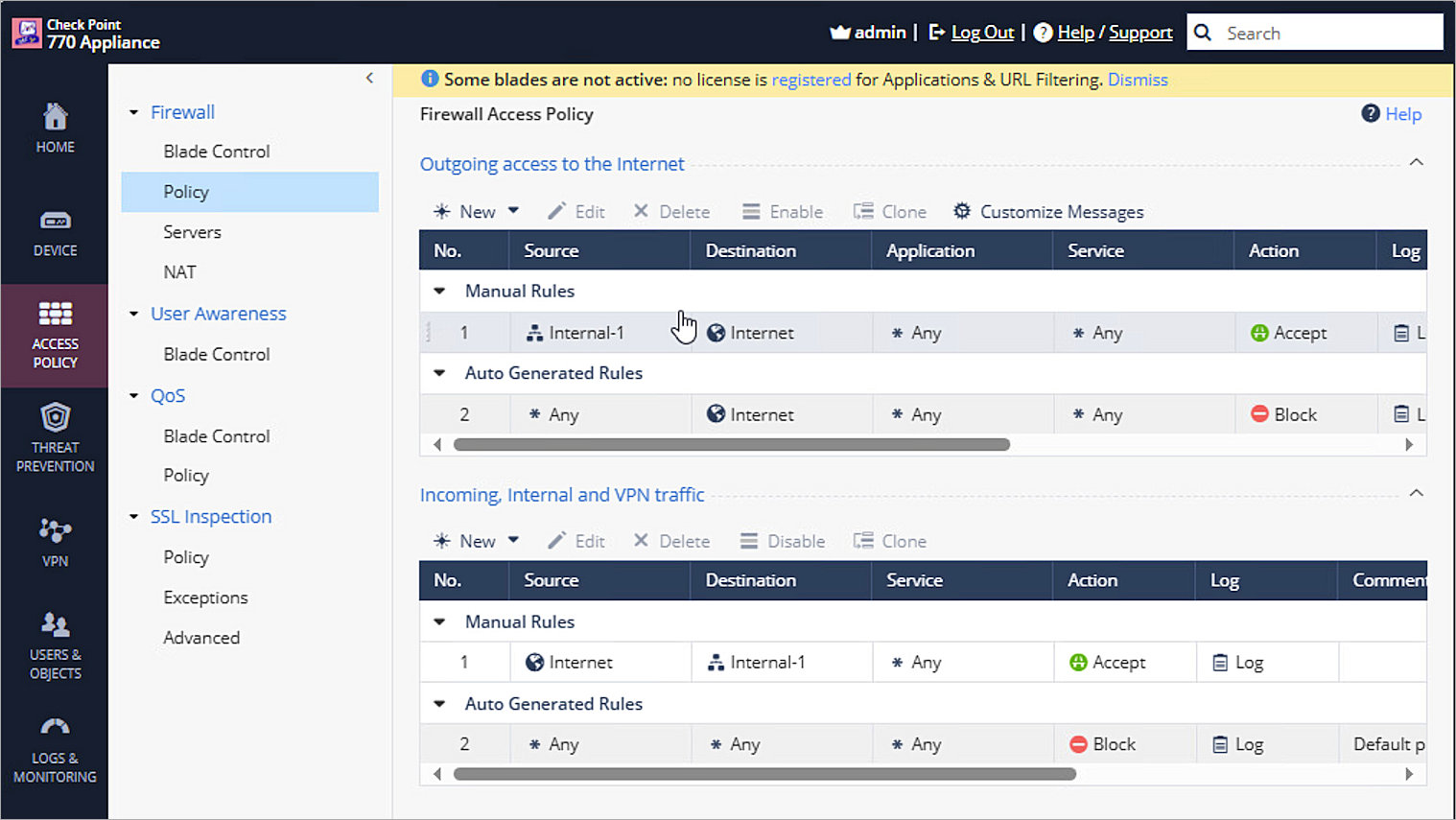
For more information, go to the Check Point Support Center.
Configure NetFlow on Check Point Firewall
To configure your Check Point firewall as a NetFlow exporter:
- Log in to the Check Point CLI page through the console port.
- Enter the following commands to configure the NetFlow exporter. For information about how to configure the exporter, go to Check Point collector settings.
This is a generic template for configuration commands:
!add netflow collector ip <IPv4 Address of Collector> port <Destination Port on Collector> [srcaddr <Source IPv4 Address>] export-format {Netflow_V5 | Netflow_V9} is-enabled {true | false}
In our example, the collector ip is 10.0.66.10, the collector port is 2055, the source ip is 10.0.66.1, the export-format is Netflow_V9, and select is enabled to true.
Enter this command to configure the collector:
add netflow collector ip 10.0.66.10 port 2055 export-format Netflow_V9 srcaddr 10.0.66.1 is-enabled true
Test the Integration
To test the Check Point Firewall integration with WatchGuard NDR:
- Log in to your WatchGuard Cloud account.
- Select Configure > WatchGuard NDR Integrations > Collection Agents. If you have a Service Provider account, you must select an account from Account Manager.
- Select the NDR Collection Agents tab to view the Last Activity column of your collection agent. This column shows the last time the collection agent uploaded the NetFlow records to WatchGuard NDR. It might take a few hours for the first upload.
- From the navigation menu, select Monitor > NDR to view the Network Summary page.

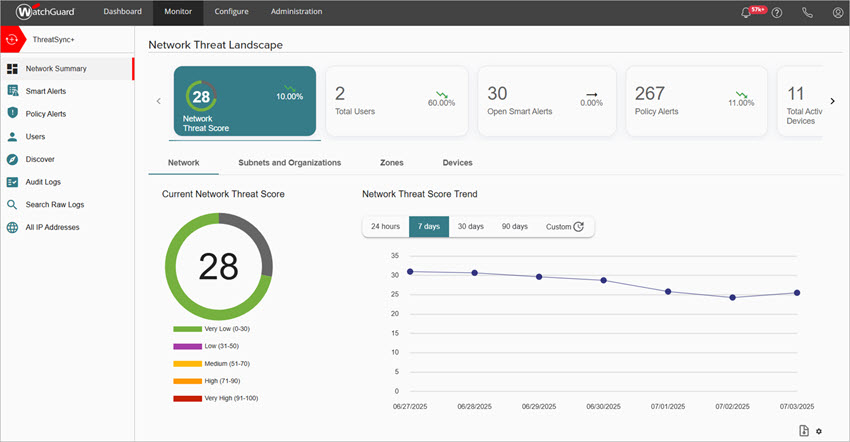
For more information about NDR, go to NDR.